Creating Your First Comparison
When an airline shows you several award pricing tiers for the same flight, the Points + Cash Calculator helps you figure out which one gives you the best value. The whole process takes under a minute.
Disclaimer: The screenshots and data shown in this guide are generated from a test environment for instructional purposes only. Program names, point values, and valuations are simulated and may not reflect current real-world rates or availability. Always verify award pricing with your loyalty program before booking.
Step 1: Open the Points + Cash Calculator
Section titled “Step 1: Open the Points + Cash Calculator”Navigate to Points + Cash Calculator from the sidebar. If you haven’t saved any comparisons yet, you’ll see an empty state prompting you to create one.
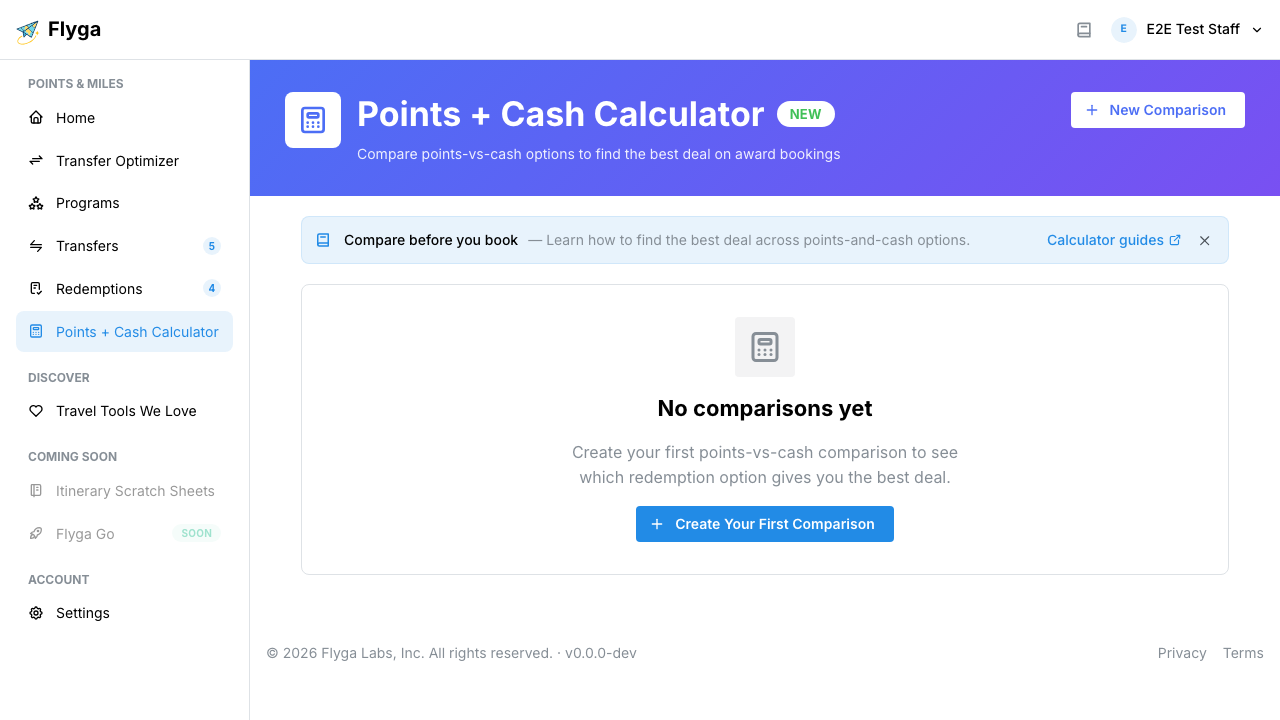
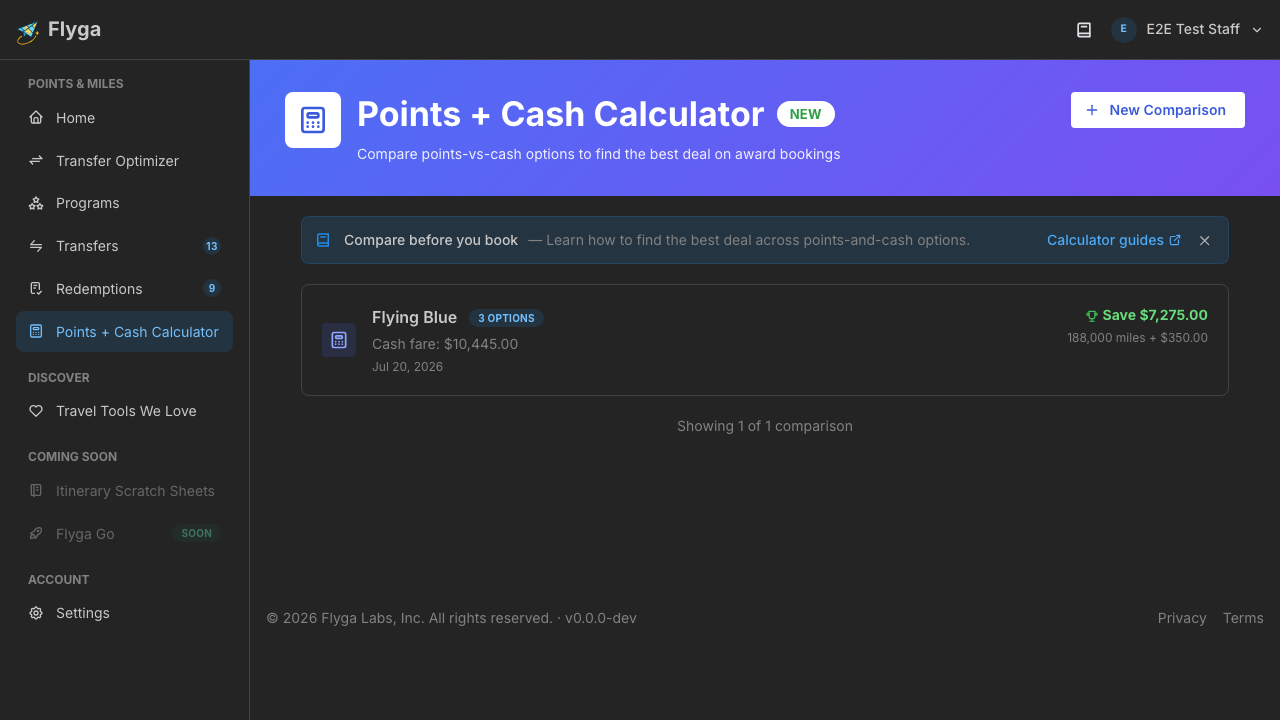
Click New Comparison to open the form.
Step 2: Select Your Program
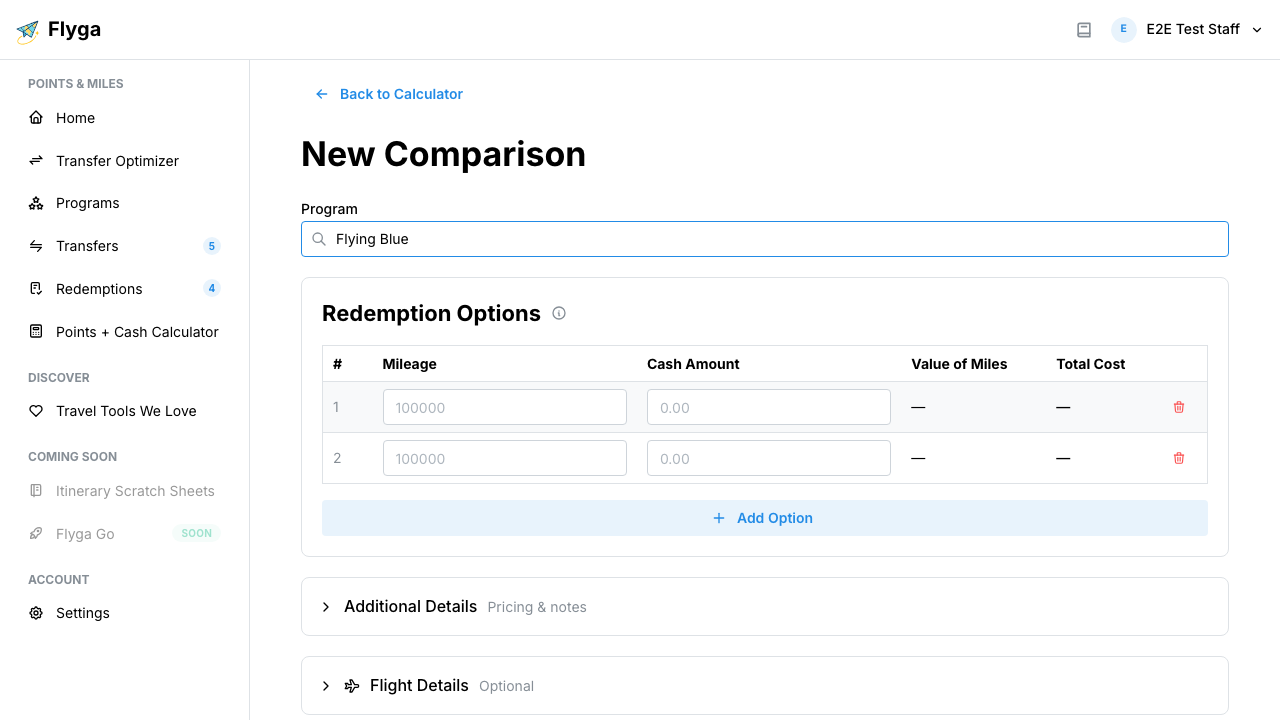
Section titled “Step 2: Select Your Program”At the top of the form, search for the loyalty program you’re comparing options for. In this example, we’ll select Flying Blue.
When you select a program that has a known valuation, the USD per Point field auto-fills. This valuation is used to calculate the dollar value of the miles in each option.
Step 3: Enter Your Options
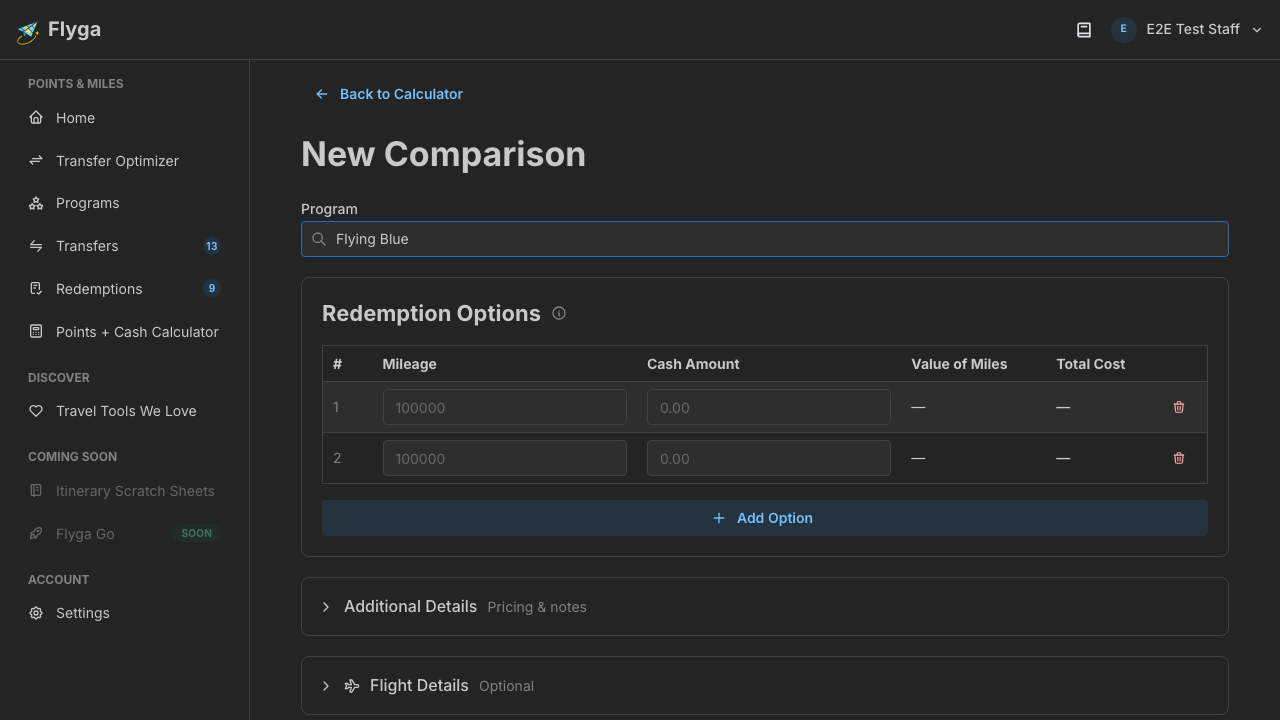
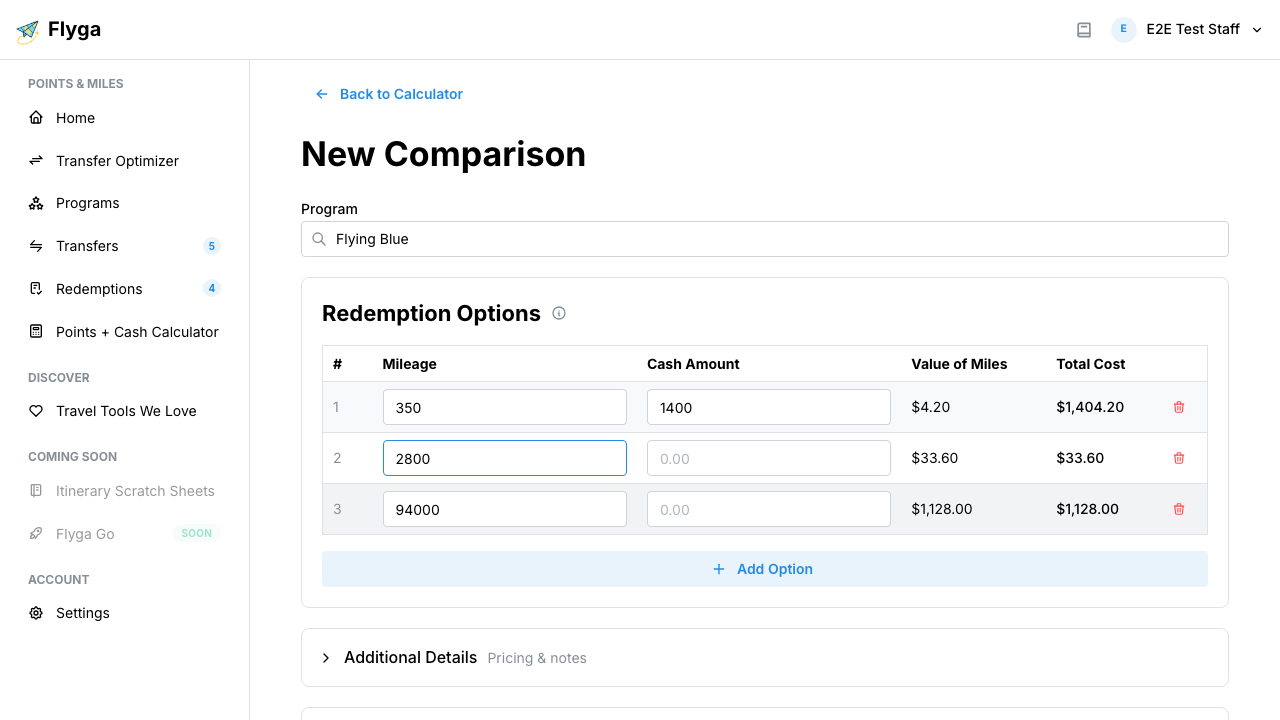
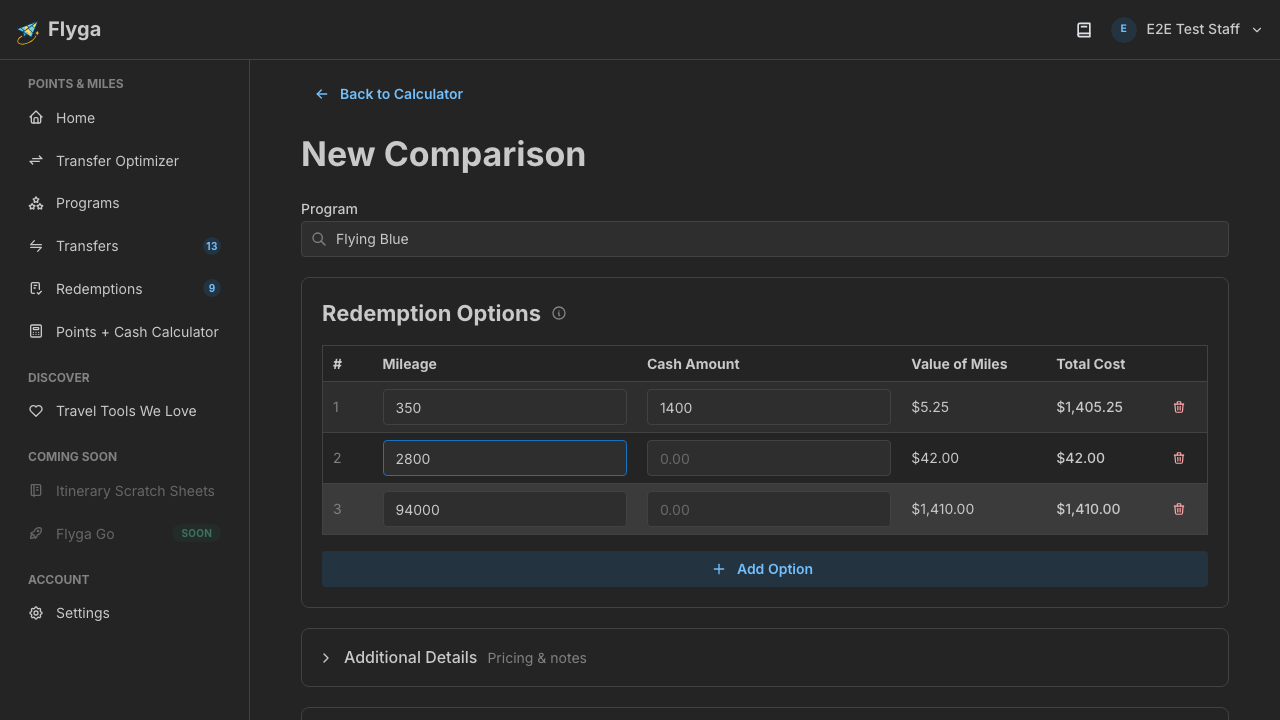
Section titled “Step 3: Enter Your Options”The options table is the heart of the calculator. Each row represents one award pricing tier. Enter the Mileage (points required) and Cash Amount (taxes and fees) for each option.
Two rows are provided by default. Press Tab or Arrow Down on the last row to add more, or click Add Option.
Step 4: Add a Cash Fare (Optional)
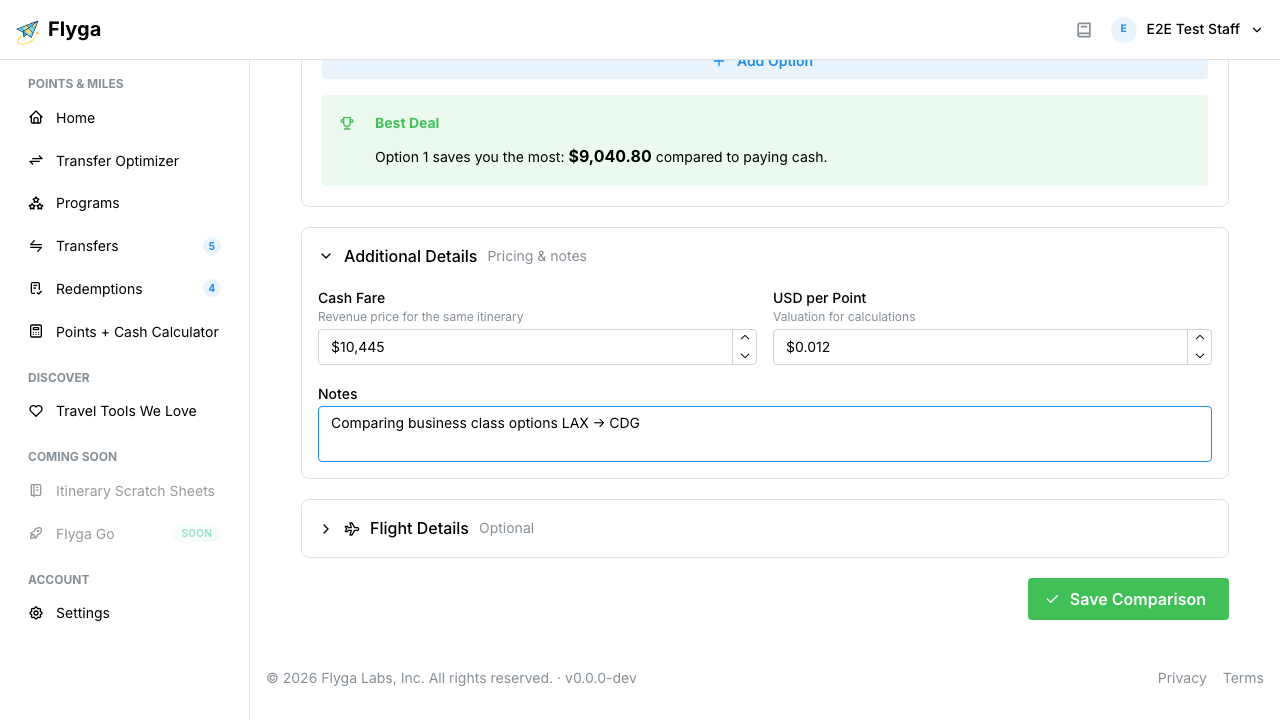
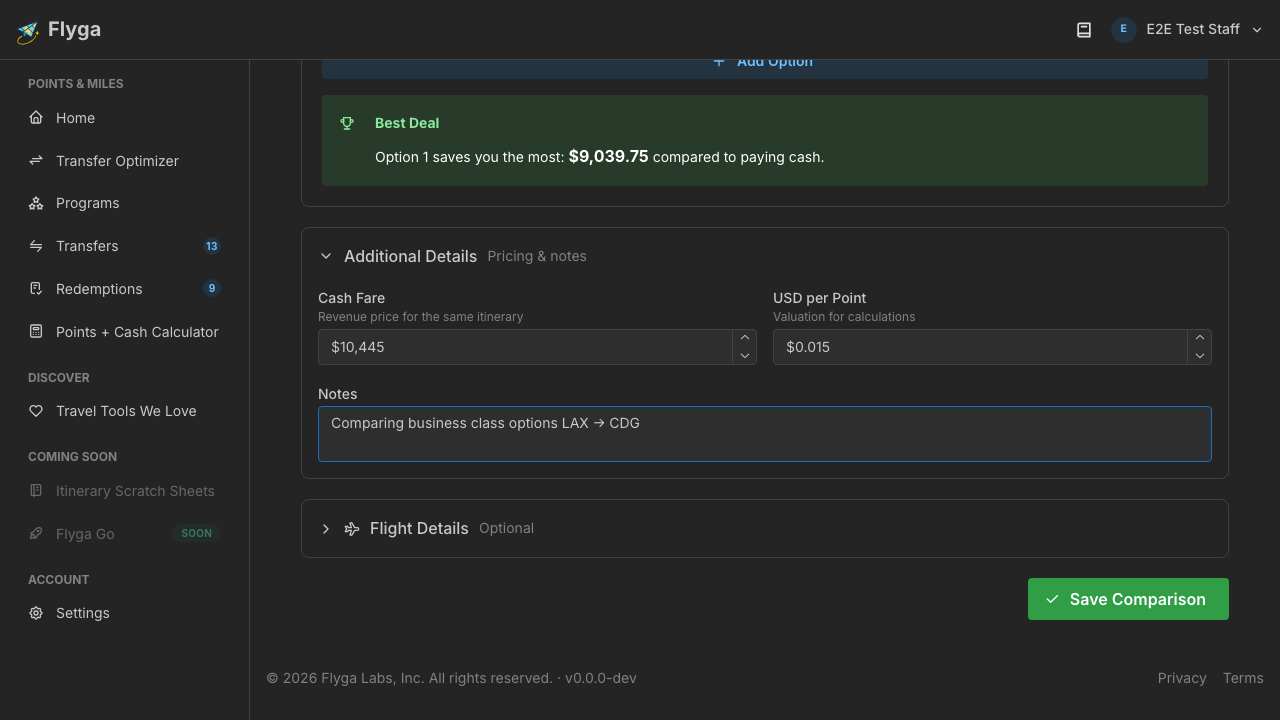
Section titled “Step 4: Add a Cash Fare (Optional)”Expand Additional Details to enter the cash fare — what you’d pay if you booked the same flight without using points. This lets the calculator show how much each option saves compared to paying cash.
You can also add notes and adjust the USD per Point valuation here.
Step 5: Save the Comparison
Section titled “Step 5: Save the Comparison”Click Save Comparison. You’ll see a success notification and be redirected to the detail page where you can review the results.
Your comparison now appears in your list. Head to Reading the Results to understand what the numbers mean.