Understanding the Dashboard
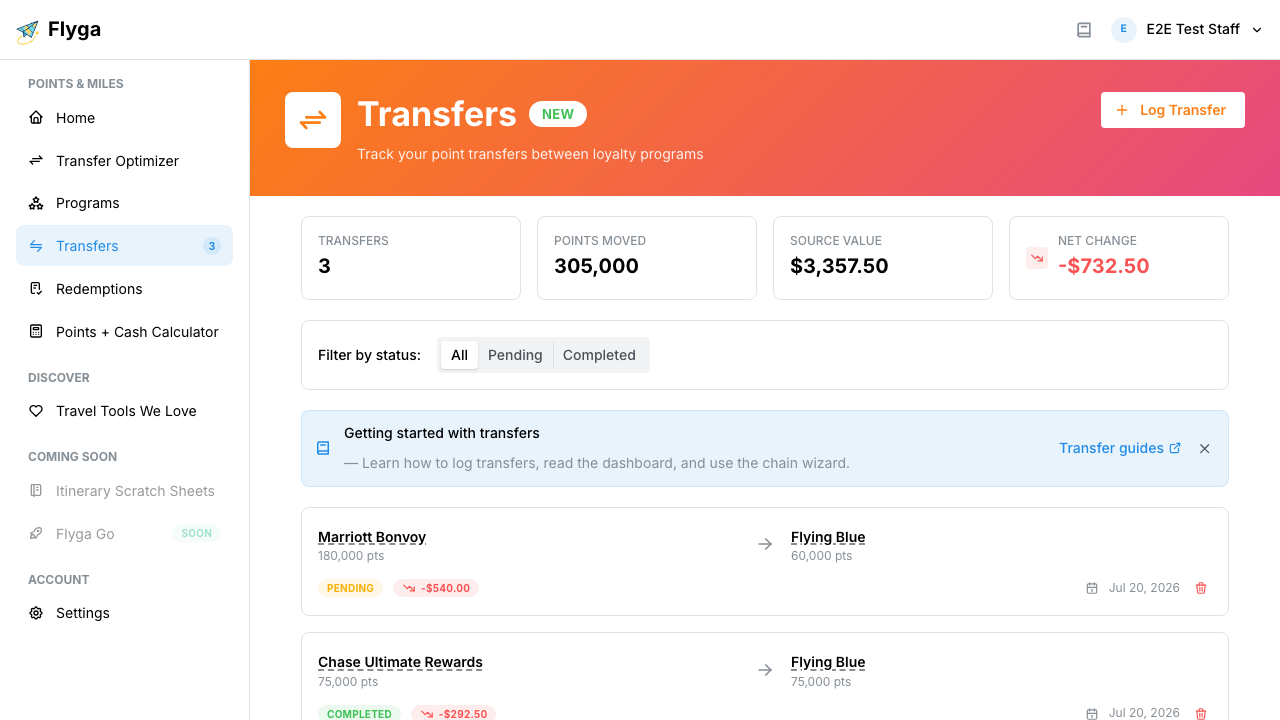
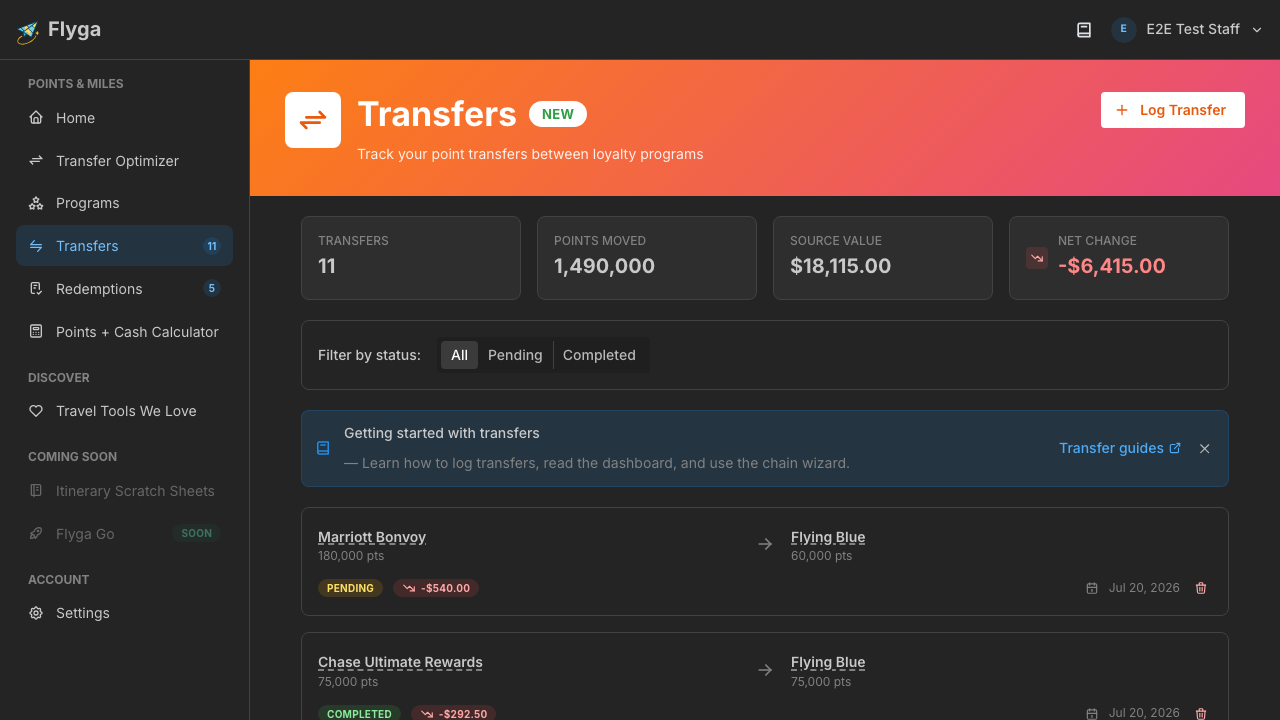
Once you’ve logged a few transfers, your Transfers page becomes a dashboard showing your transfer history, summary stats, and the net value impact of your transfers.
Summary Stats
Section titled “Summary Stats”At the top of the page, four cards summarize your transfer activity:
- Transfers — Total number of transfers you’ve logged
- Points Moved — Total source points you’ve transferred out
- Source Value — Estimated USD value of all source points transferred (based on program valuations)
- Net Change — Whether your transfers gained or lost value overall (green = gained, red = lost)
Filtering by Status
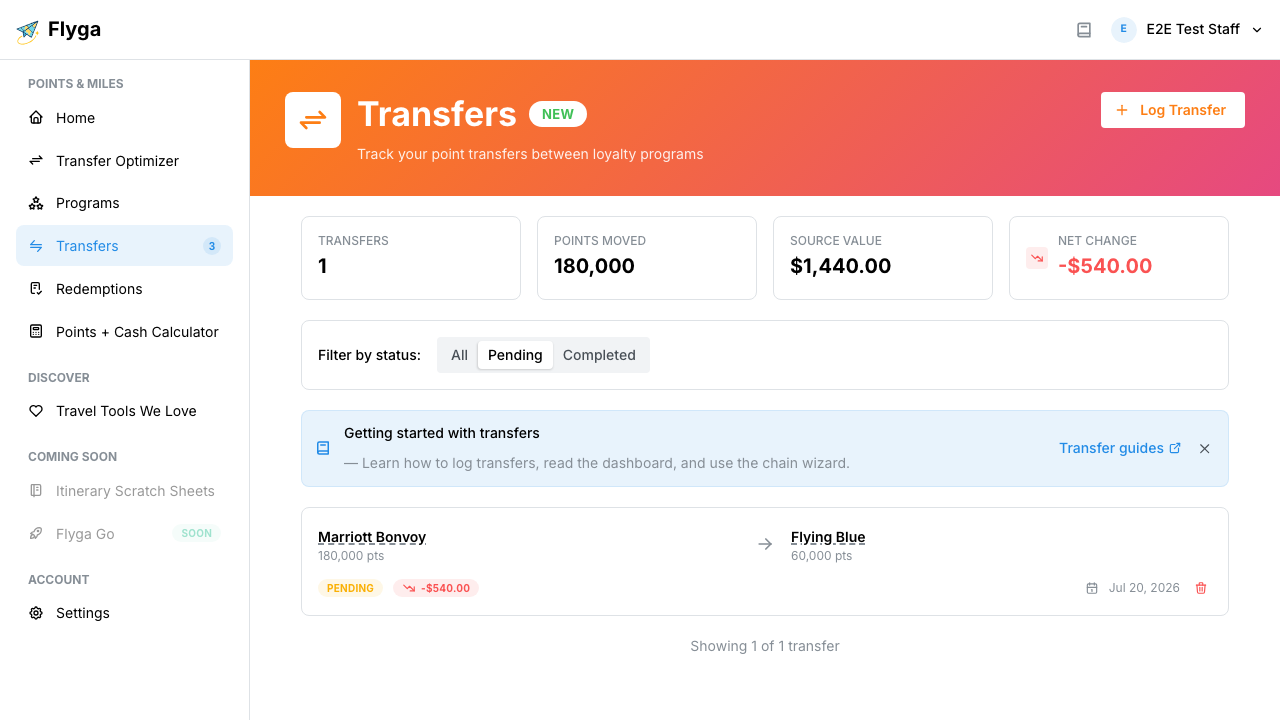
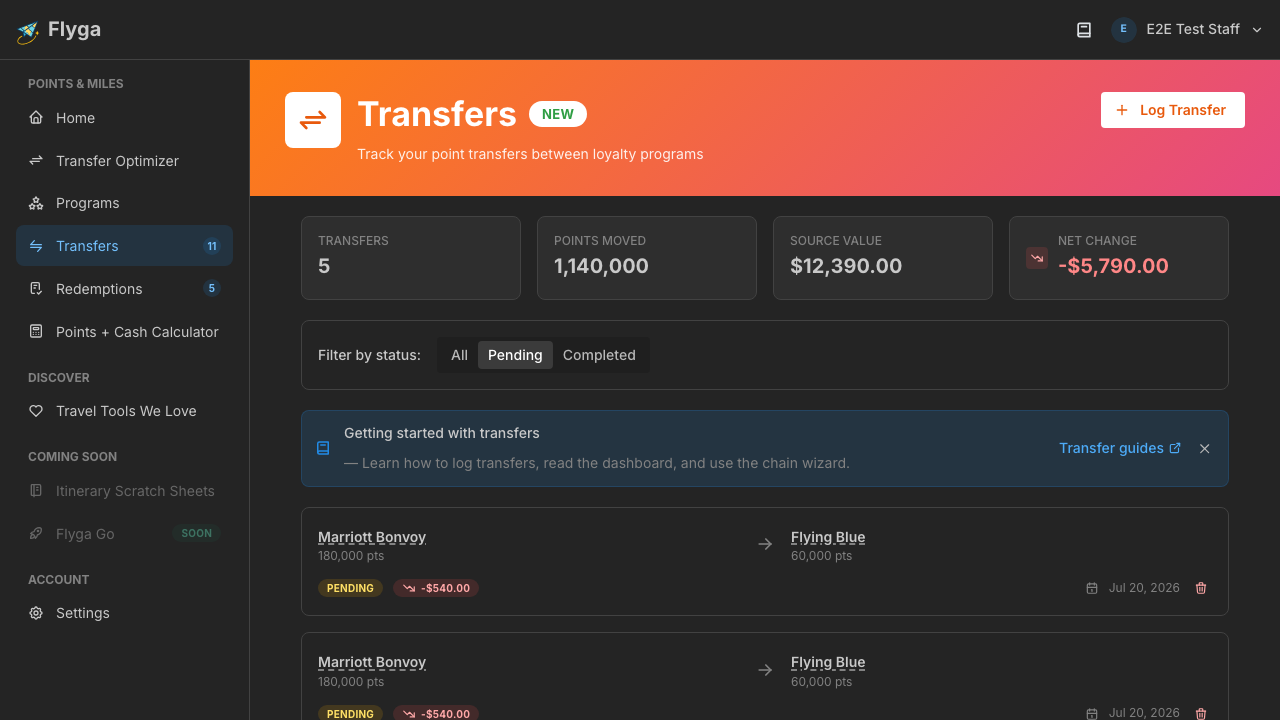
Section titled “Filtering by Status”Use the status filter to focus on specific transfers:
- All — Shows everything
- Pending — Transfers that haven’t settled yet (still waiting for points to arrive)
- Completed — Transfers that have fully settled
Transfer Details
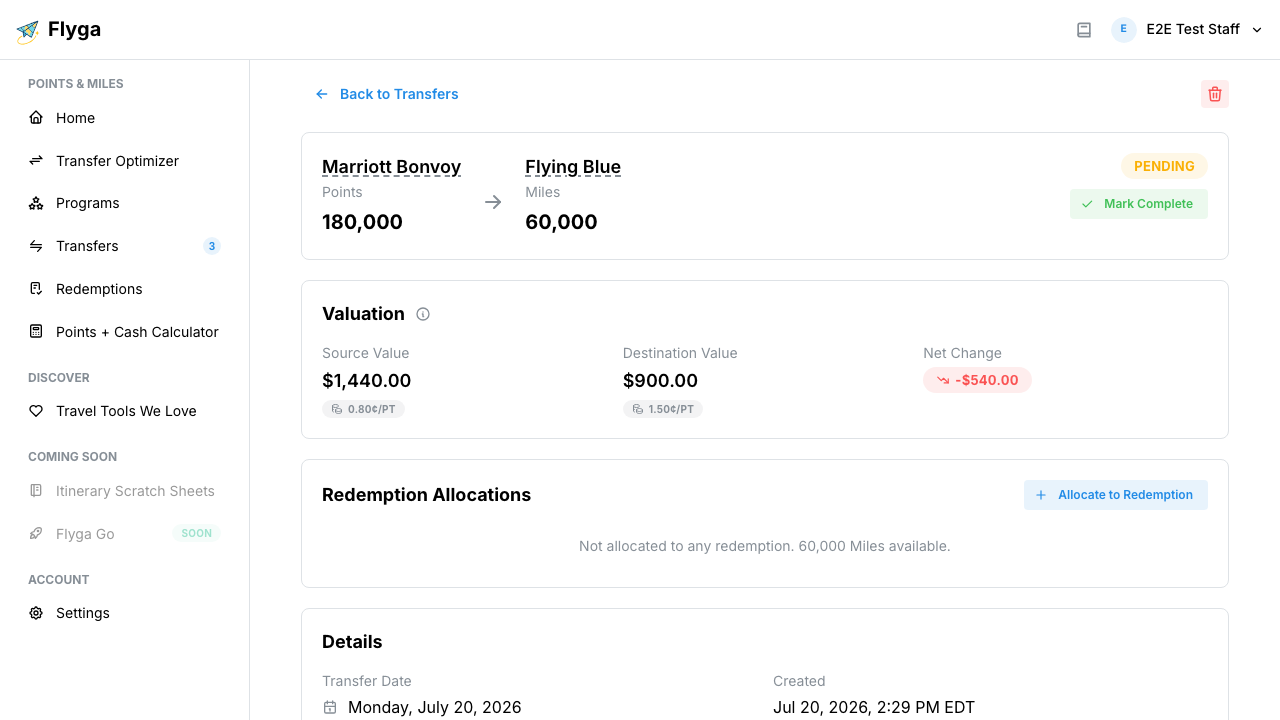
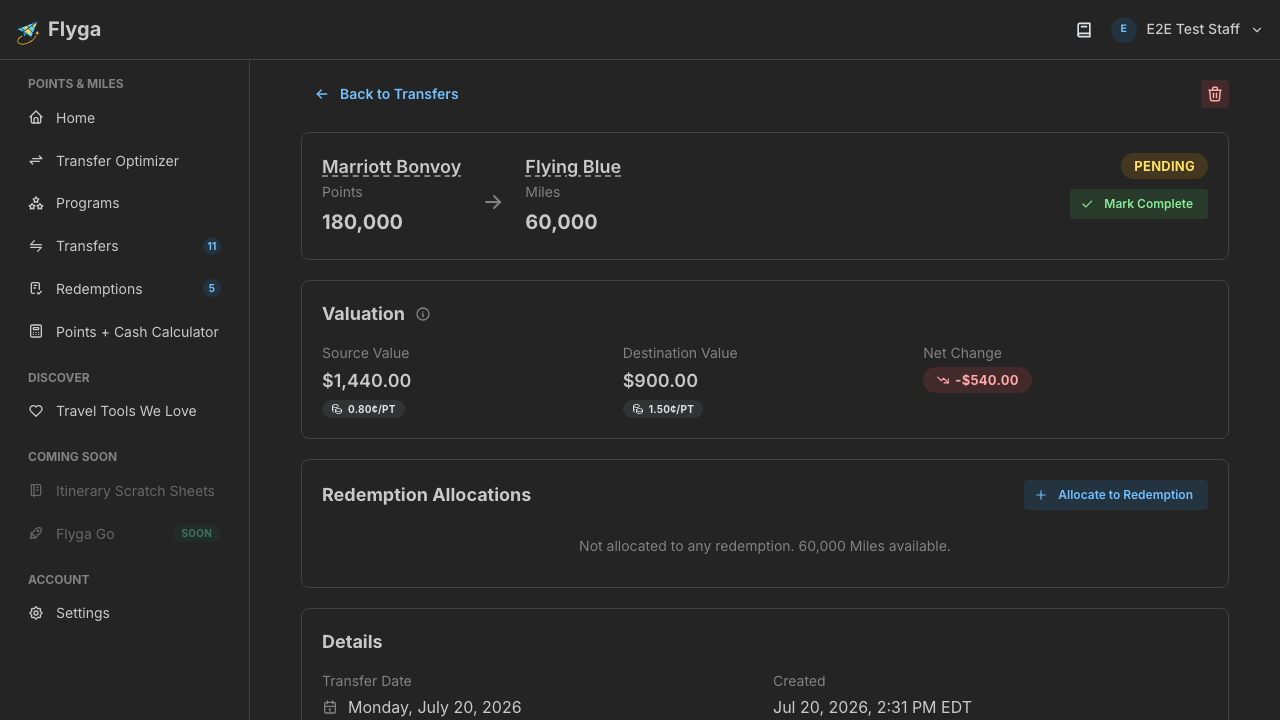
Section titled “Transfer Details”Click on any transfer card to see its full details, including:
- The exact transfer ratio used
- Source and destination valuations at the time of transfer
- Bonus information (if a promotion was applied)
- Transfer and completion dates
- Any notes you added
Next up: learn how to find the best transfer options with the Transfer Optimizer.