Multi-Hop Chain Wizard
Some transfer options go through an intermediate program — for example, Chase Ultimate Rewards to Marriott Bonvoy to Flying Blue. The Chain Wizard walks you through each leg of the transfer so every hop gets tracked individually.
Identifying Multi-Hop Transfers
Section titled “Identifying Multi-Hop Transfers”In the Transfer Optimizer results, multi-hop transfer options show “2 hops” (or more) in their summary. These pass through one or more intermediate programs.
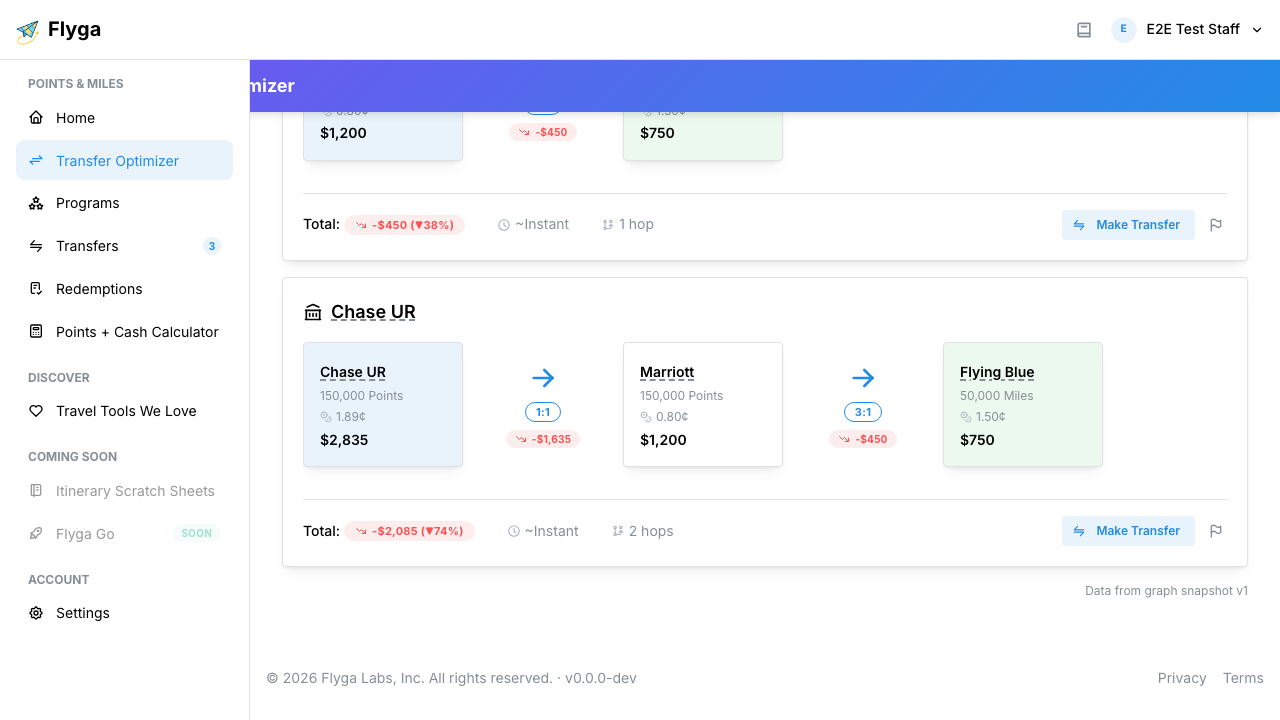
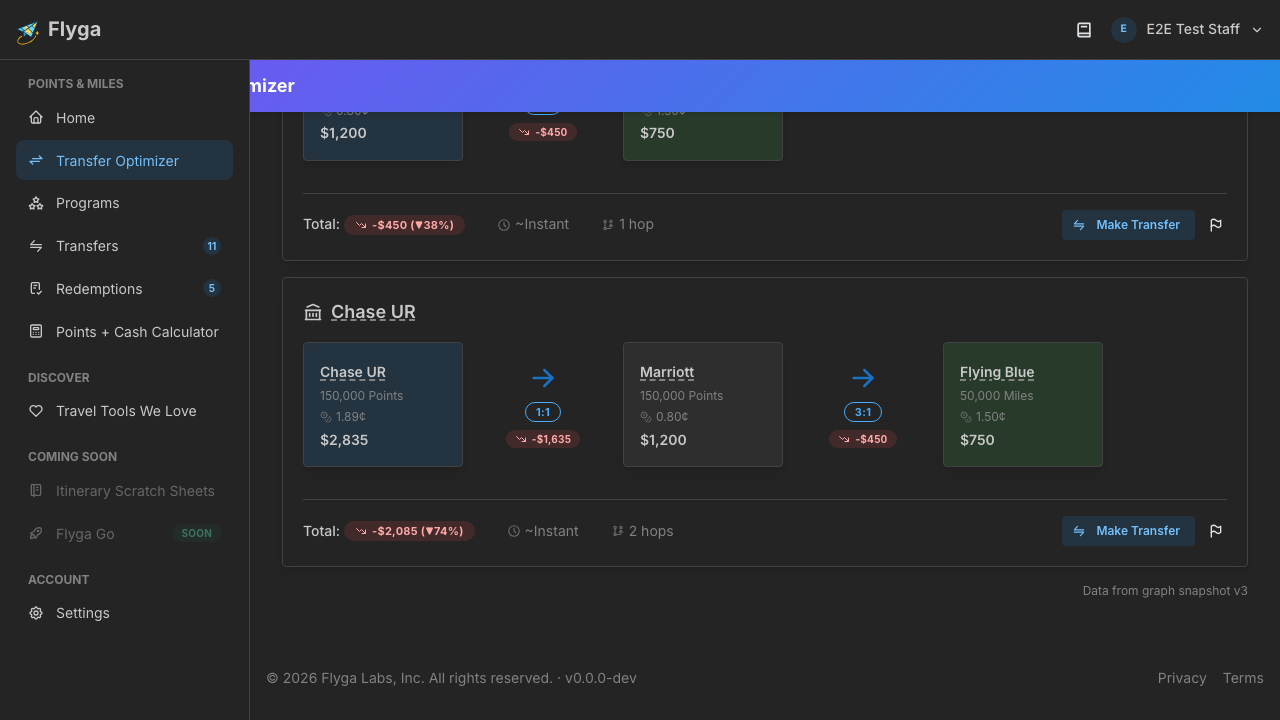
When you click Make Transfer on a multi-hop transfer option, the Chain Wizard opens instead of the regular form.
Step 1: First Hop
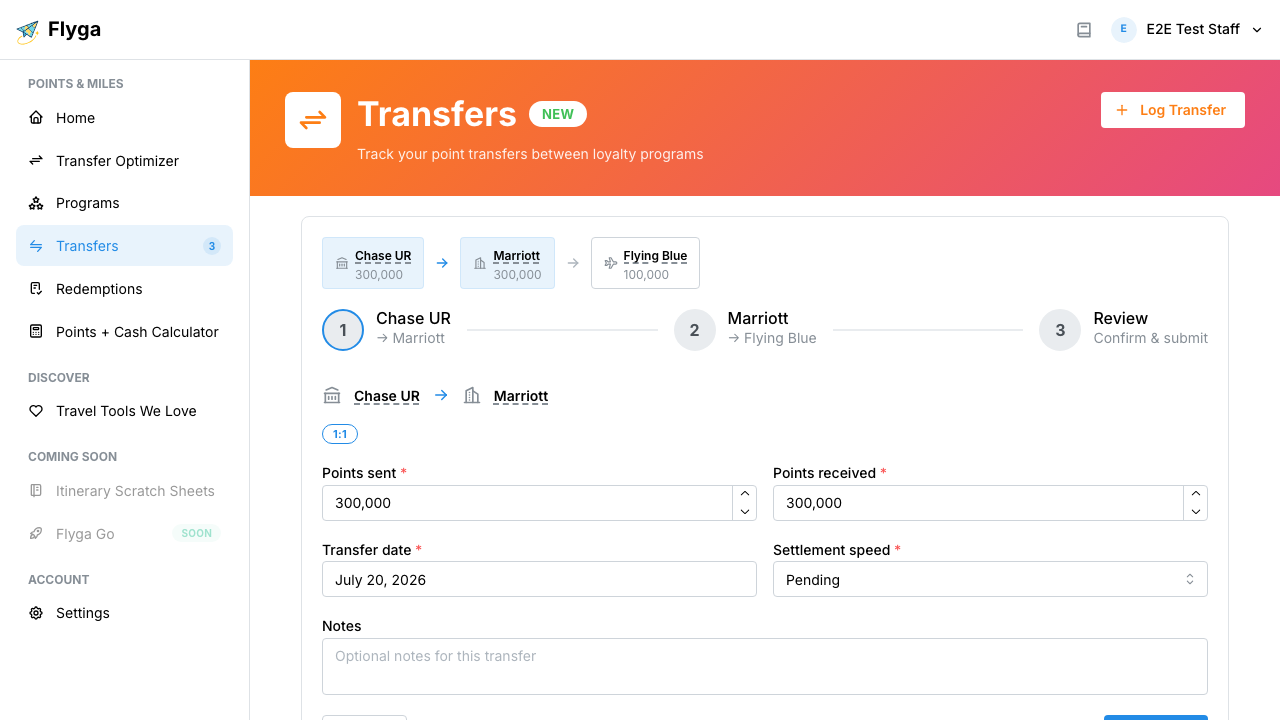
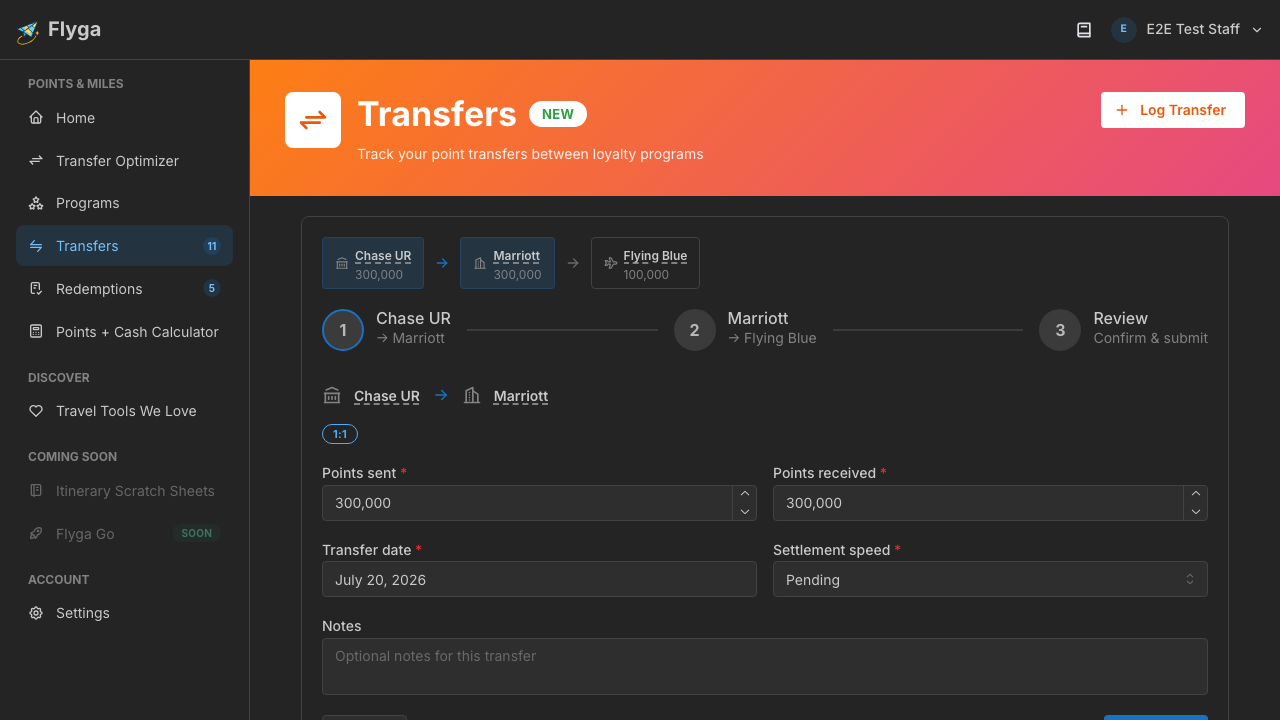
Section titled “Step 1: First Hop”The wizard shows an overview bar at the top so you always know where you are in the chain. The first step covers the initial transfer — in this example, Chase Ultimate Rewards to Marriott Bonvoy.
The points sent and received are pre-filled from the Optimizer’s calculations. You can adjust the settlement speed and add notes specific to this leg.
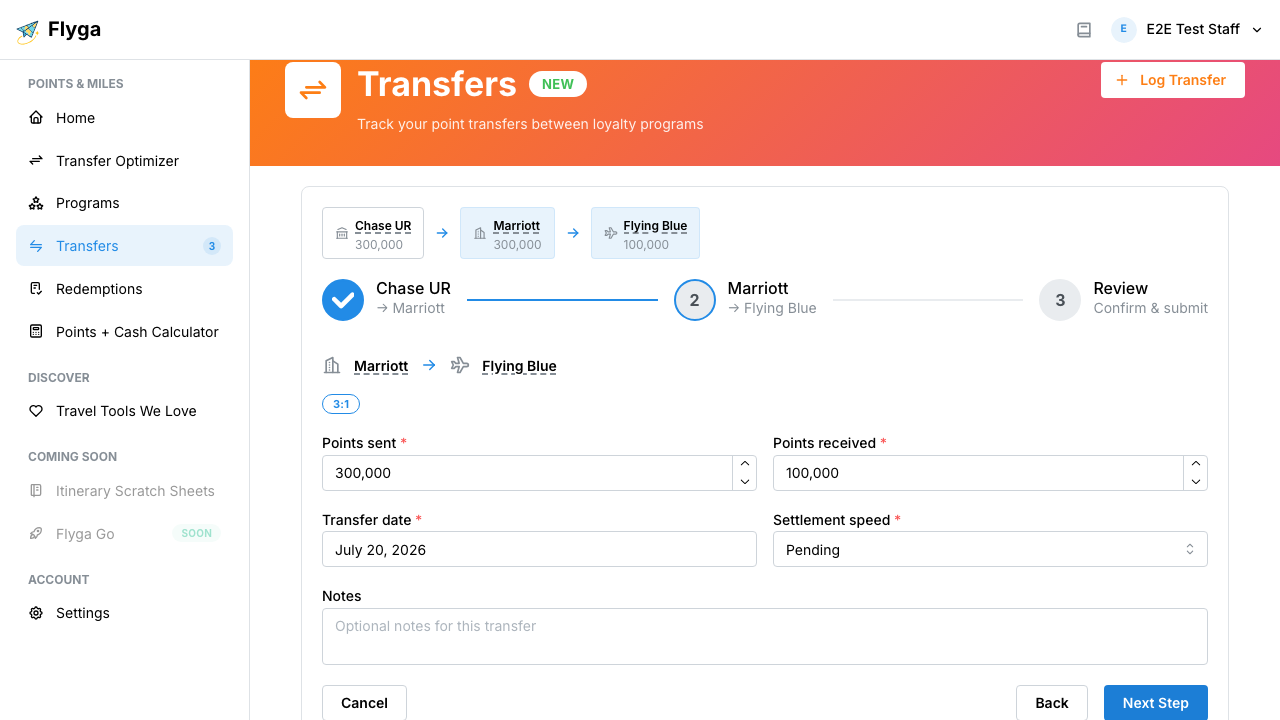
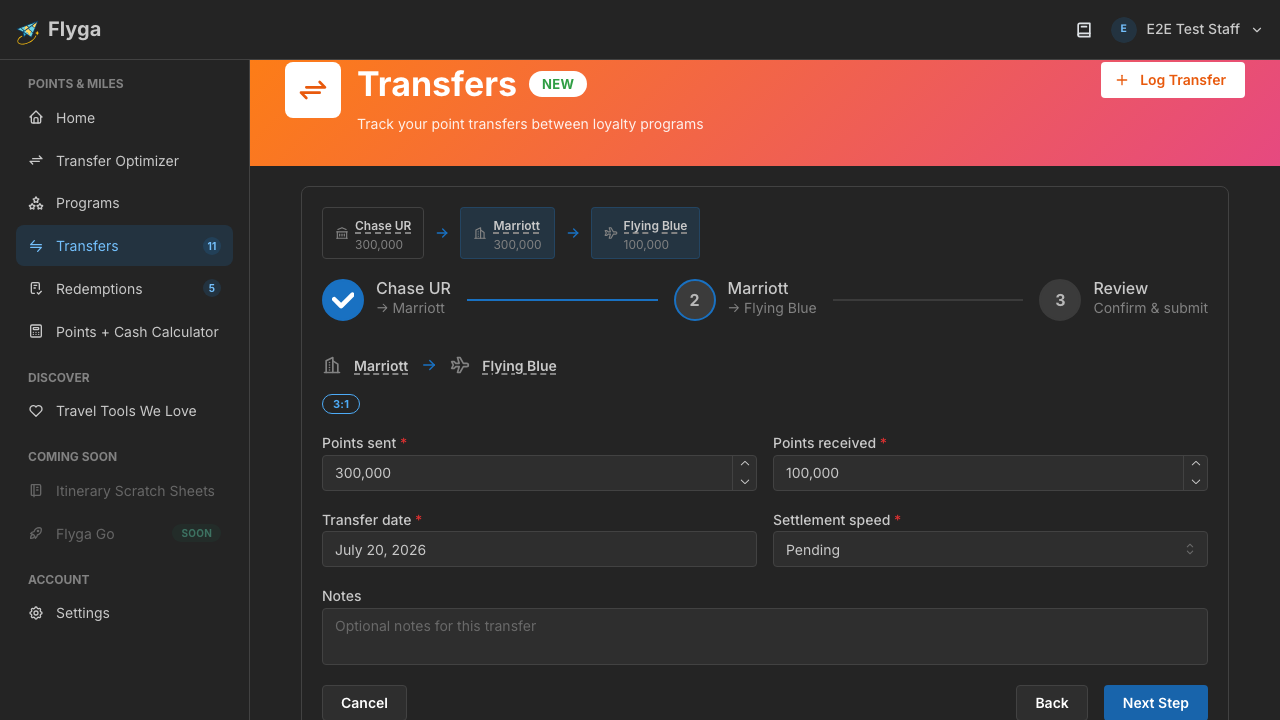
Step 2: Second Hop
Section titled “Step 2: Second Hop”Click Next Step to move to the next leg of the chain — here, Marriott Bonvoy to Flying Blue. The same fields are available for this hop.
Review and Submit
Section titled “Review and Submit”After completing all hops, click Next Step one more time to reach the review screen. Here you’ll see:
- Transfer date — The date you initiated the chain (defaults to today)
- Summary of all hops — From/to programs, points, and settlement speed for each leg
- Total — Overall points sent (first hop) and received (last hop)
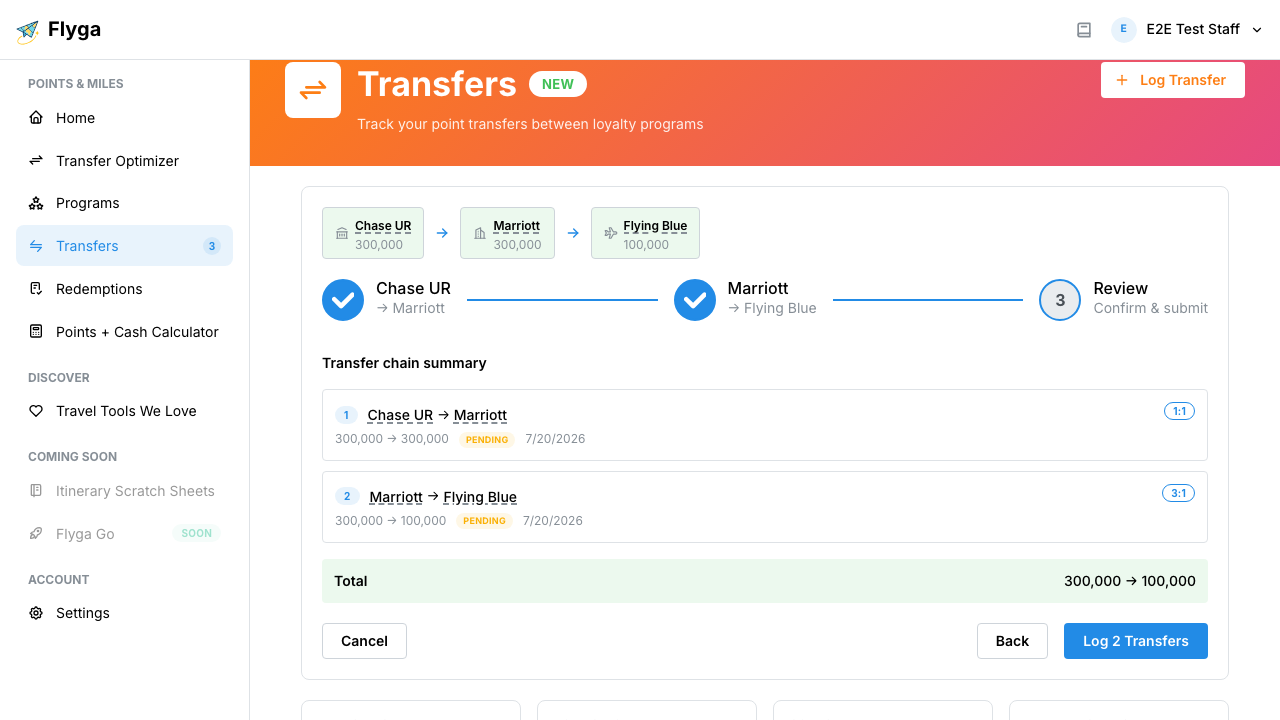
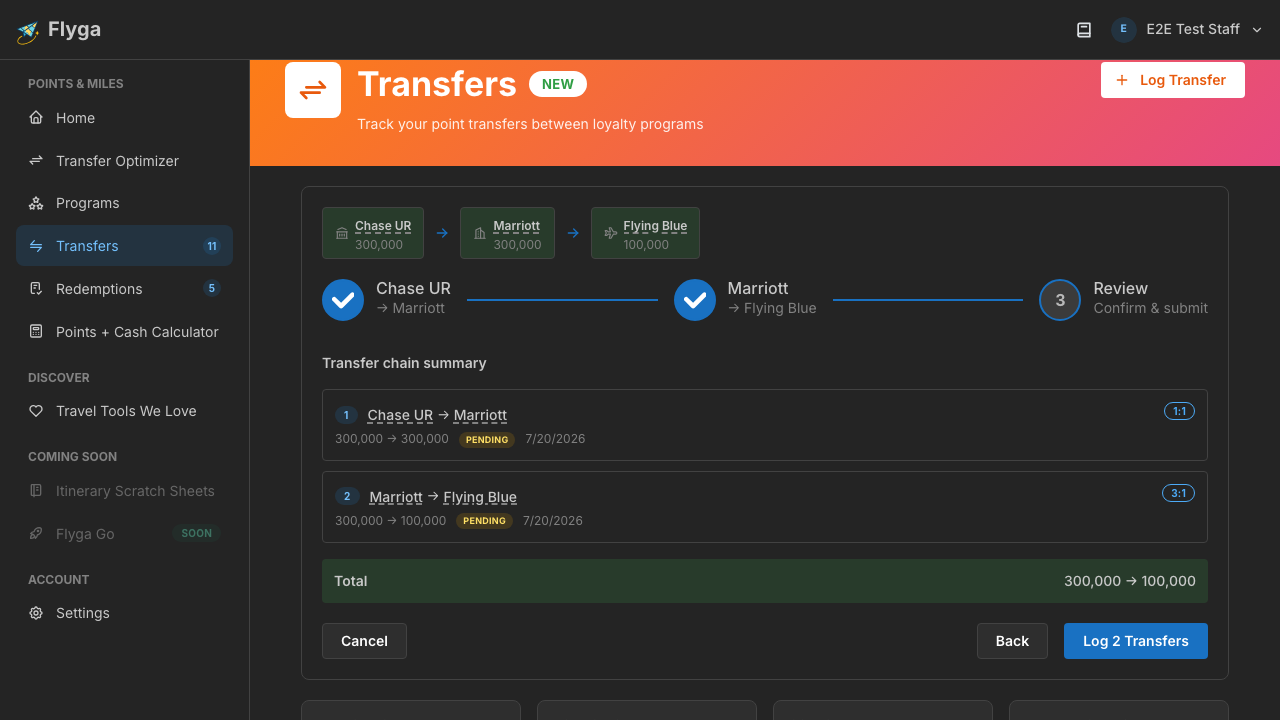
When everything looks good, click Log 2 Transfers (or however many hops are in the chain). All transfers are created together and linked as a chain.
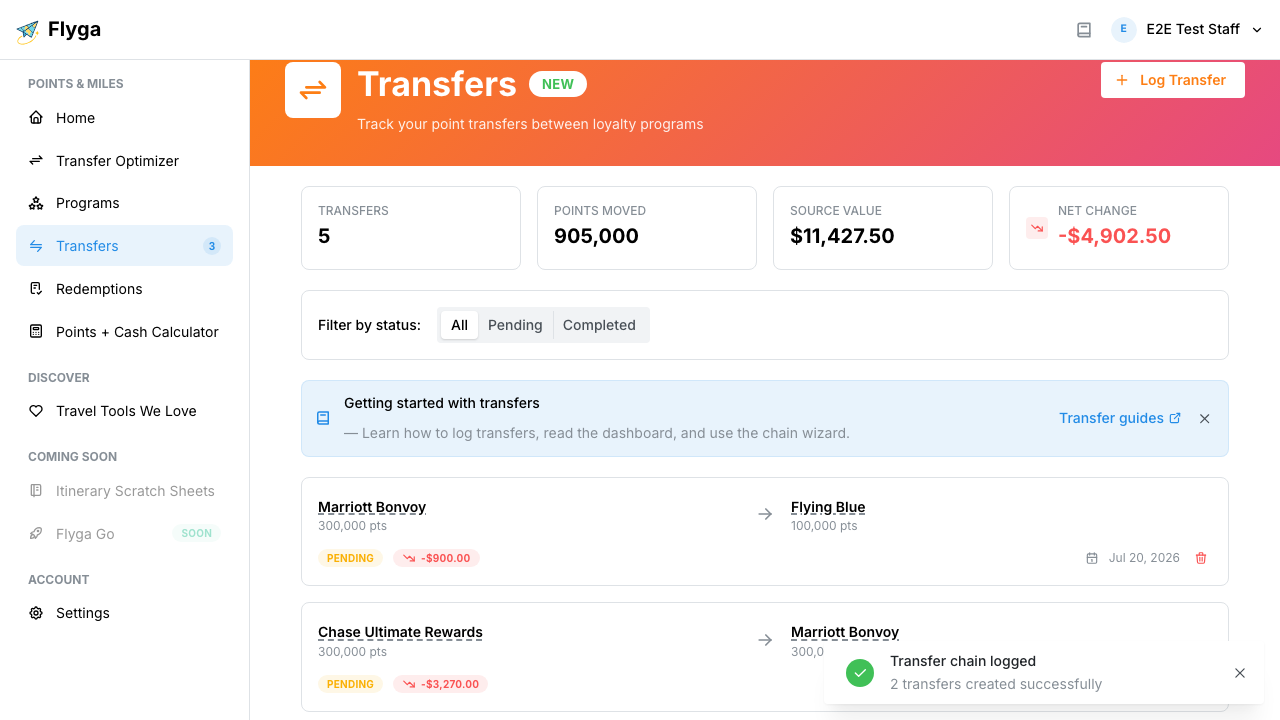
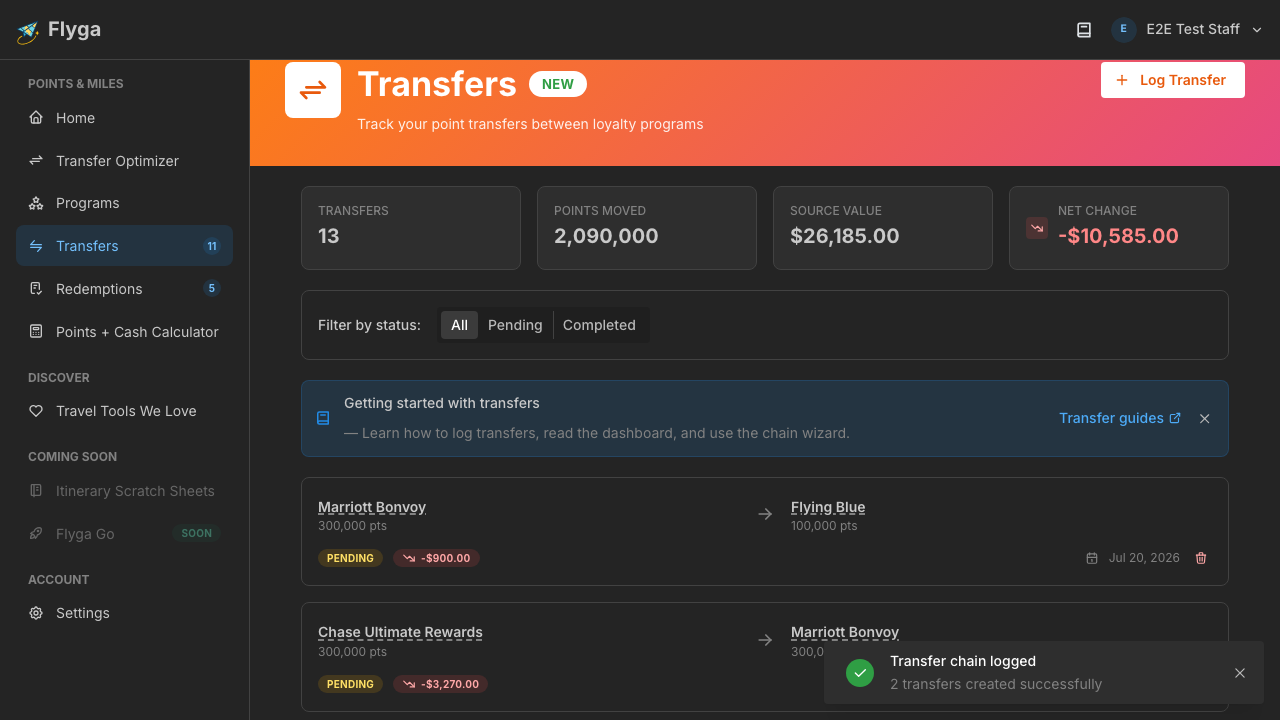
The transfers now appear in your dashboard as individual entries, each linked to the same chain. Head back to your Dashboard to see them.