Create an MCP key
Cursor, Claude, and Grok inside Cursor connect with the URL only and sign in with OAuth. They do not need a key.
An MCP key is for scheduled jobs, cron, and raw HTTP: Grok Bot and similar machines that send Accept: application/json, text/event-stream, a Chrome User-Agent, and Authorization: Bearer. It is a long secret that starts with flyga_mcp_. Treat it like a password. It can read and update your Plan account. It only works with Flyga MCP, not the website’s REST API.
If you do not see API keys under Account, MCP keys are not enabled for your account yet. You can still connect Cursor and Claude without a key.
Open API keys
Section titled “Open API keys”On go.flyga.app, open Account → API keys.
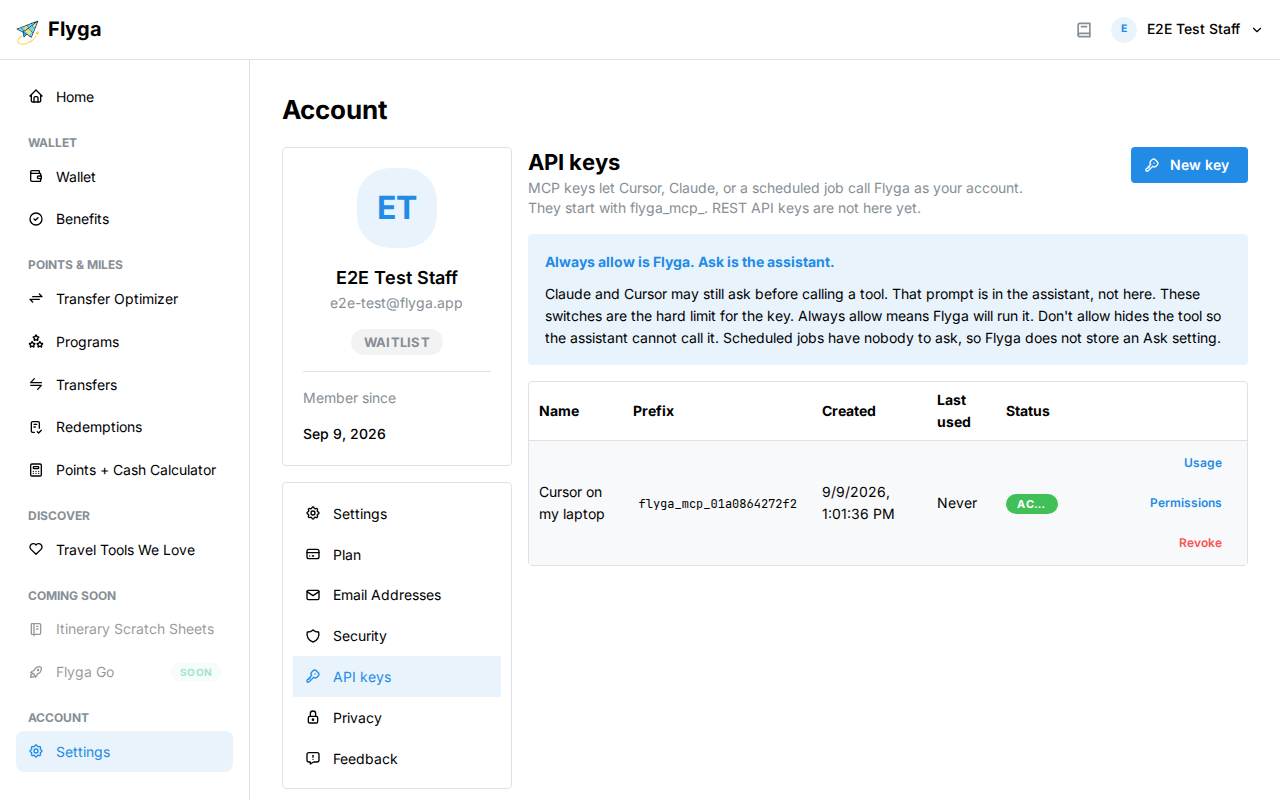
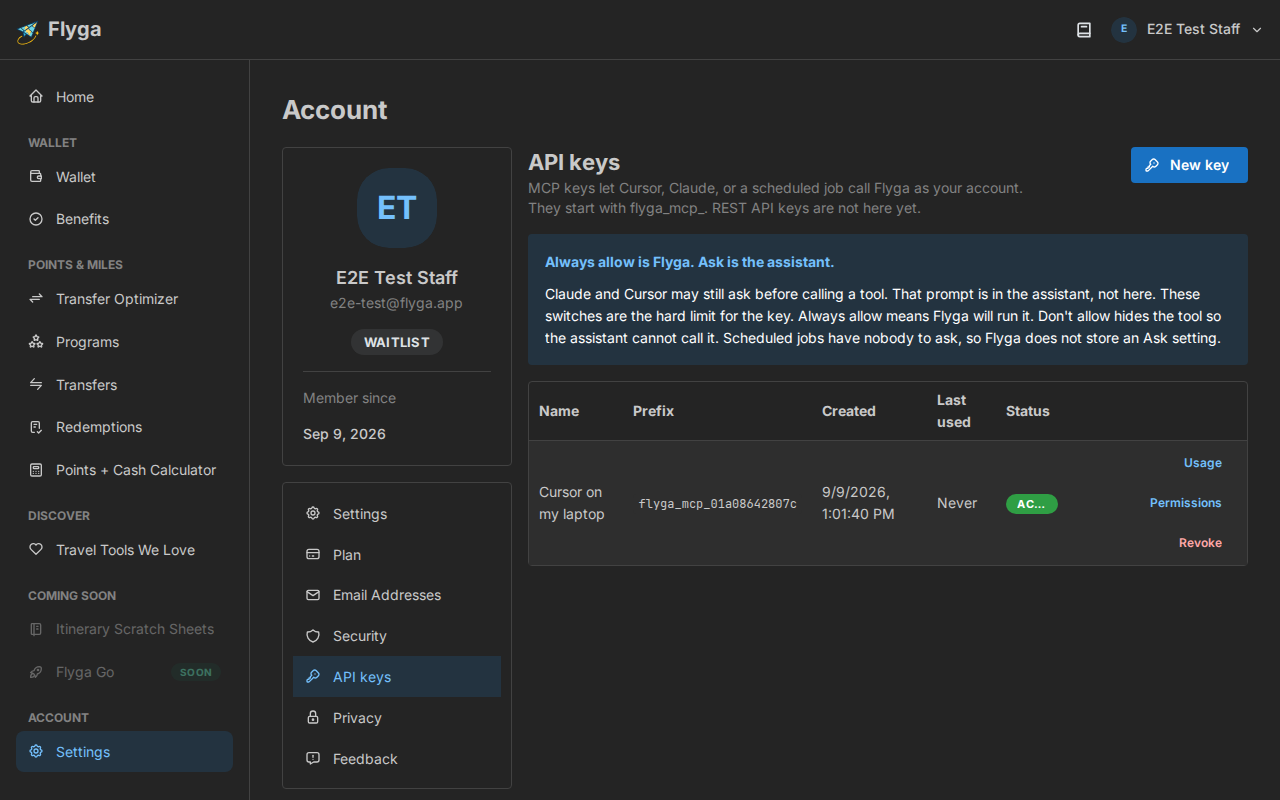
Create a key
Section titled “Create a key”Click New key. Name it after the machine that will send it — “Grok Bot weekly optimizer”, “curl on the NAS”.
Leave the switches on Always allow for anything you want that agent to do. Turn a group to Don’t allow if this key should not see that part of your account (for example, a read-only catalog key with Wallet and Transfers off).
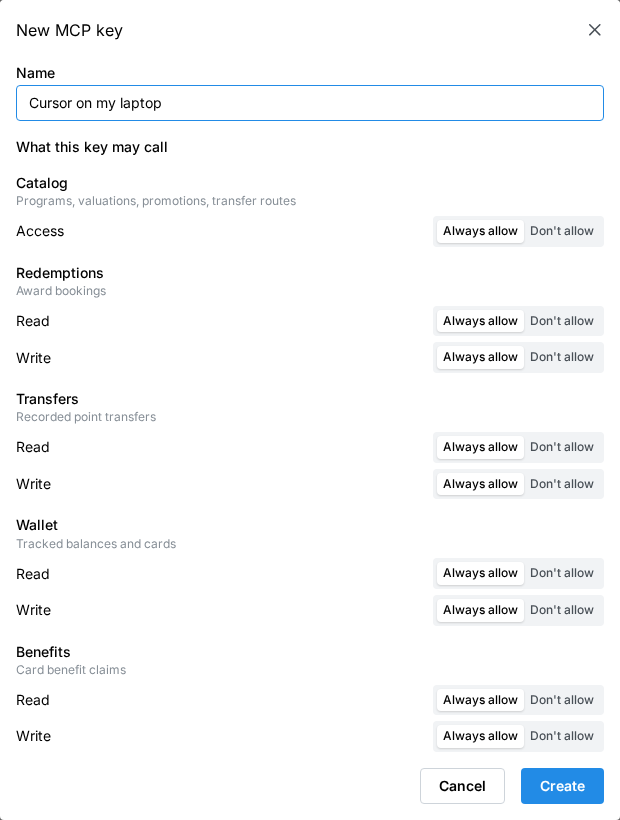
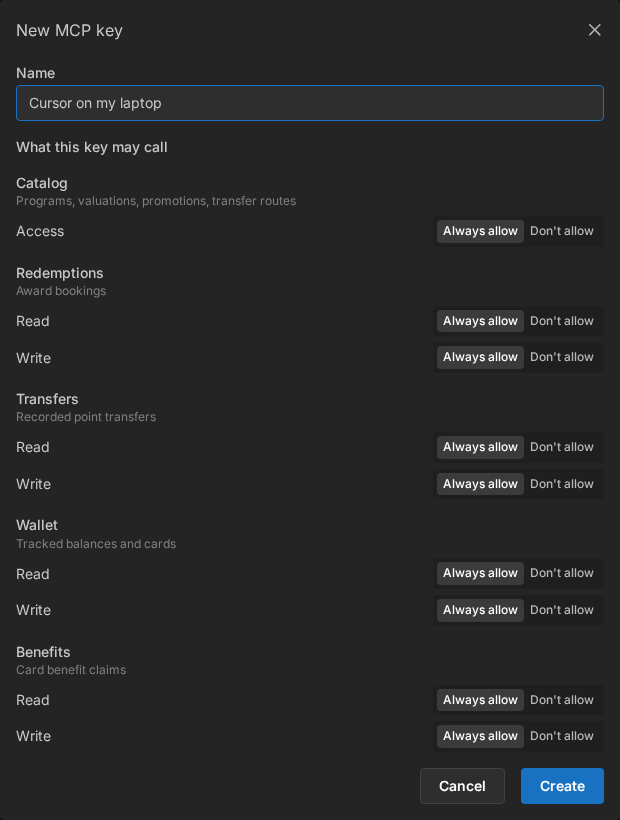
| Group | What the agent can do |
|---|---|
| Catalog | Programs, valuations, live bonuses, transfer options, Transfer Optimizer, airports, airlines, and reporting catalog data issues |
| Redemptions | List your award bookings; Write logs or edits them |
| Transfers | List recorded transfers; Write logs or edits them |
| Wallet | See tracked balances; Write updates a balance or starts tracking a program |
| Benefits | List card benefit claims; Write marks them used, hidden, or written off |
Click Create.
Copy the secret once
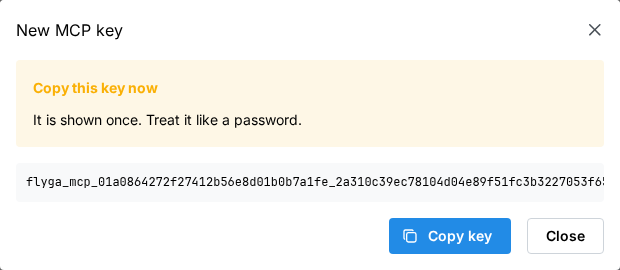
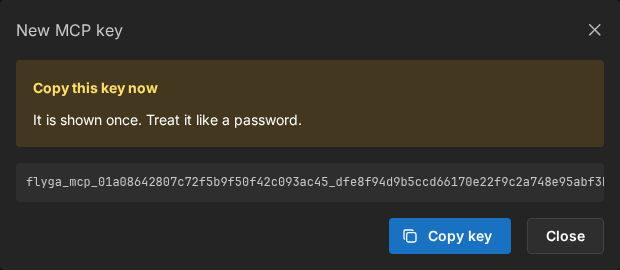
Section titled “Copy the secret once”The full key is shown once. Copy it into the agent’s secret store or the client’s config. If you close the dialog without copying, mint another key.
Always allow vs Don’t allow
Section titled “Always allow vs Don’t allow”Those switches are the hard limit for the key. Always allow means Flyga will run that kind of call. Don’t allow hides it so the agent cannot call it.
Claude and Cursor may still ask “allow this tool?” before they send anything. That prompt is in the assistant, not in Flyga.
You can change a key’s permissions later from the same page. Revoke it if it leaks — it stops working on the next request.
API keys (bots & curl only)
Section titled “API keys (bots & curl only)”Point the machine at https://api.flyga.app/mcp (keep /mcp, no trailing slash). Send all three:
Authorization: Bearerplus theflyga_mcp_secretAccept: application/json, text/event-stream- a Chrome
User-Agent
Put the secret in the job’s environment or the client’s private config.