Quick Transfers from the Optimizer
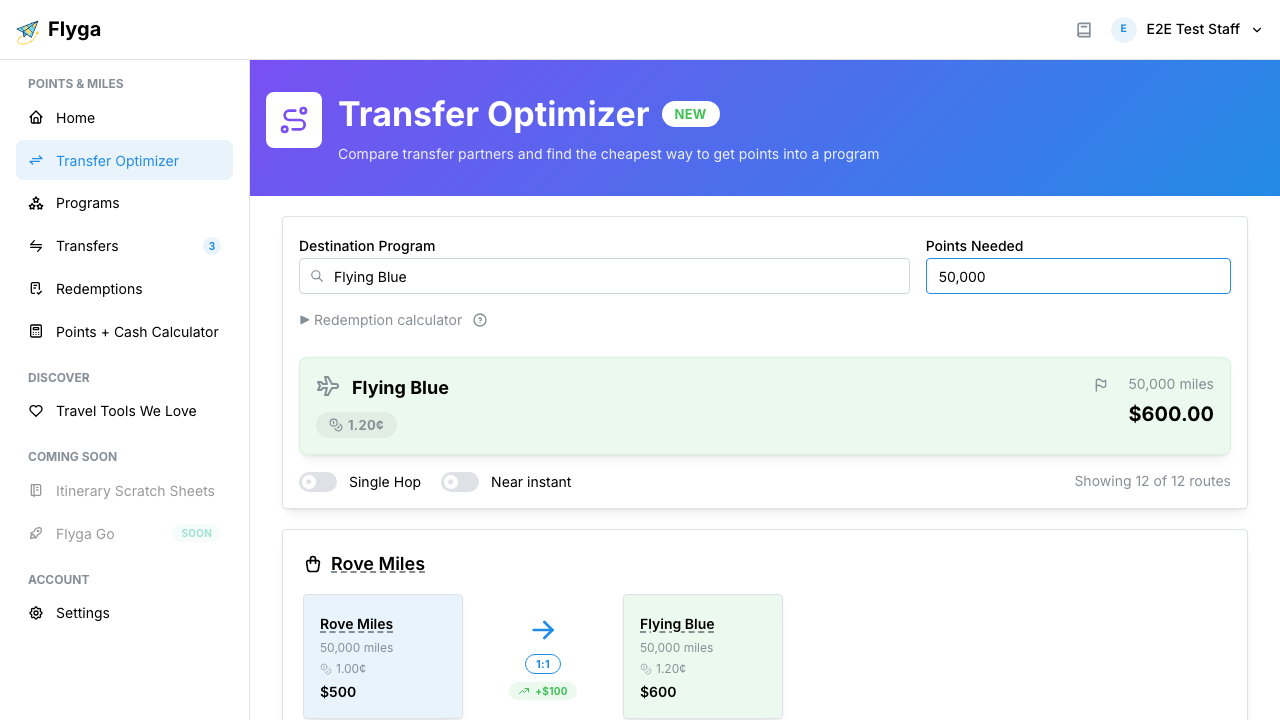
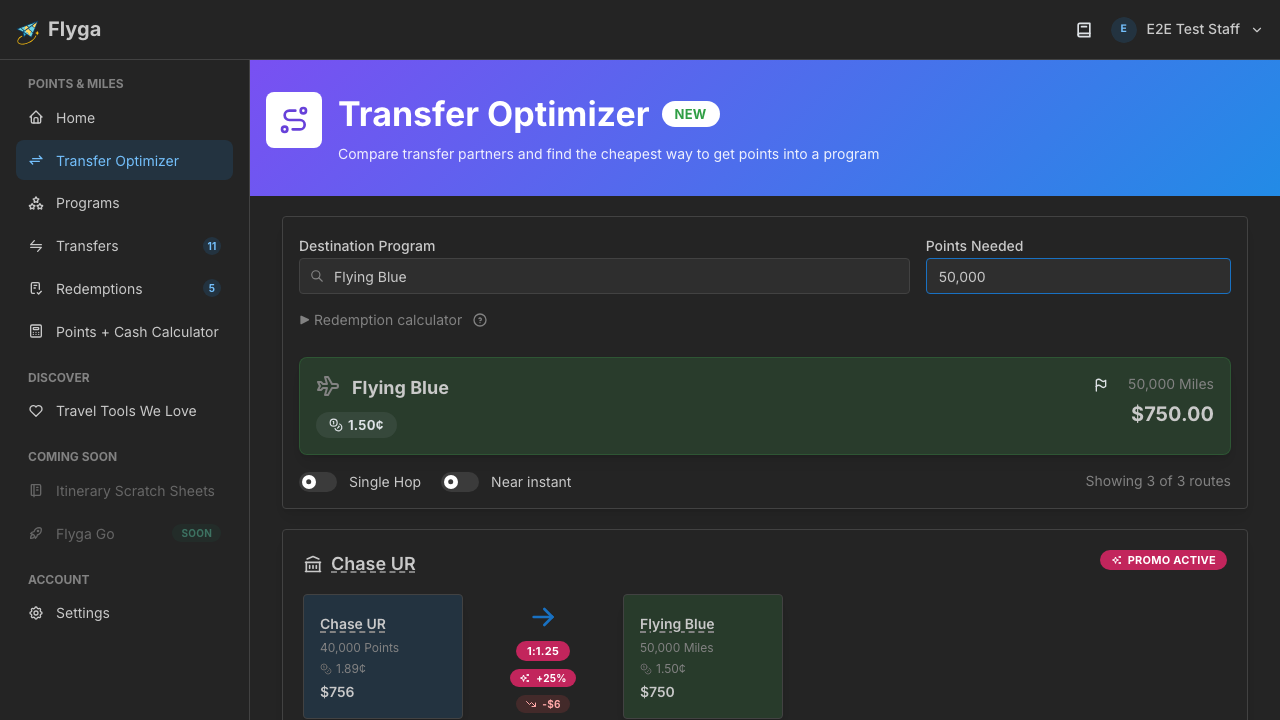
When you find a transfer option you like in the Optimizer, you don’t have to manually re-enter all the details. Click Make Transfer to jump straight to the Transfers page with everything pre-filled.
Finding the Make Transfer Button
Section titled “Finding the Make Transfer Button”After searching for a destination program in the Transfer Optimizer, each transfer option has a Make Transfer button. For a single-hop transfer (one direct transfer), clicking it takes you to the Transfers page with the form pre-filled.
Pre-filled Transfer Form
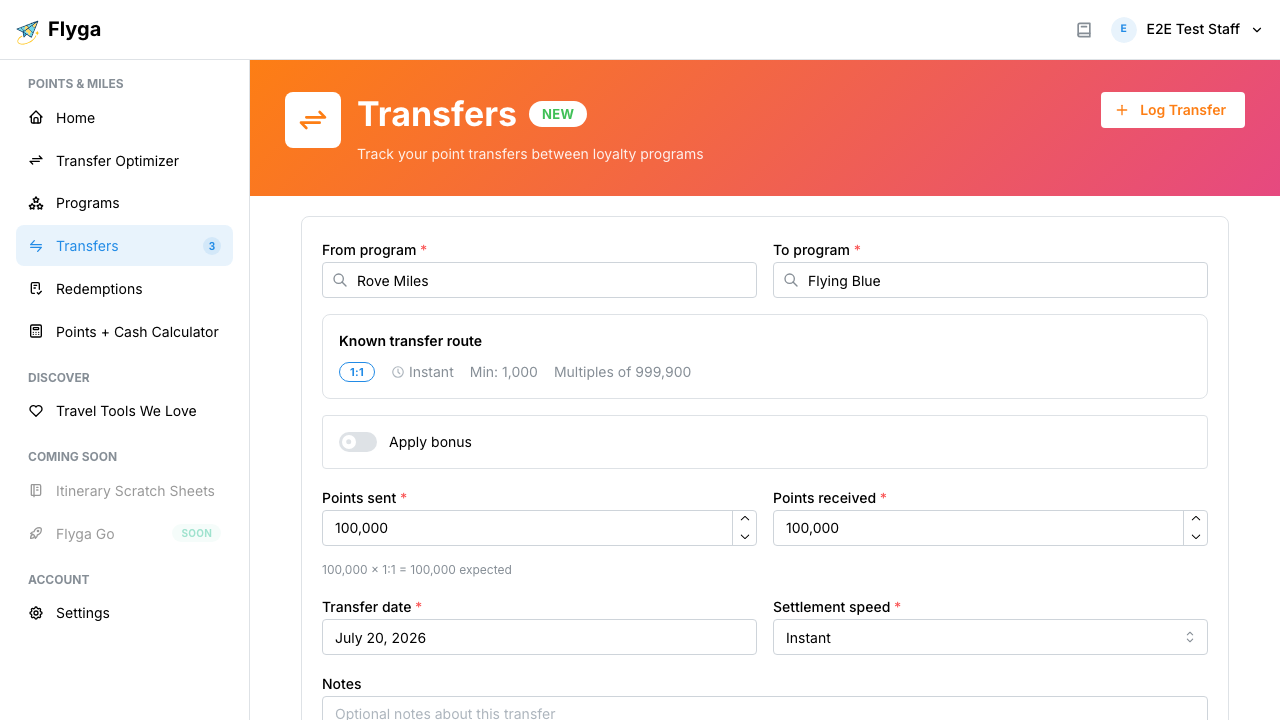
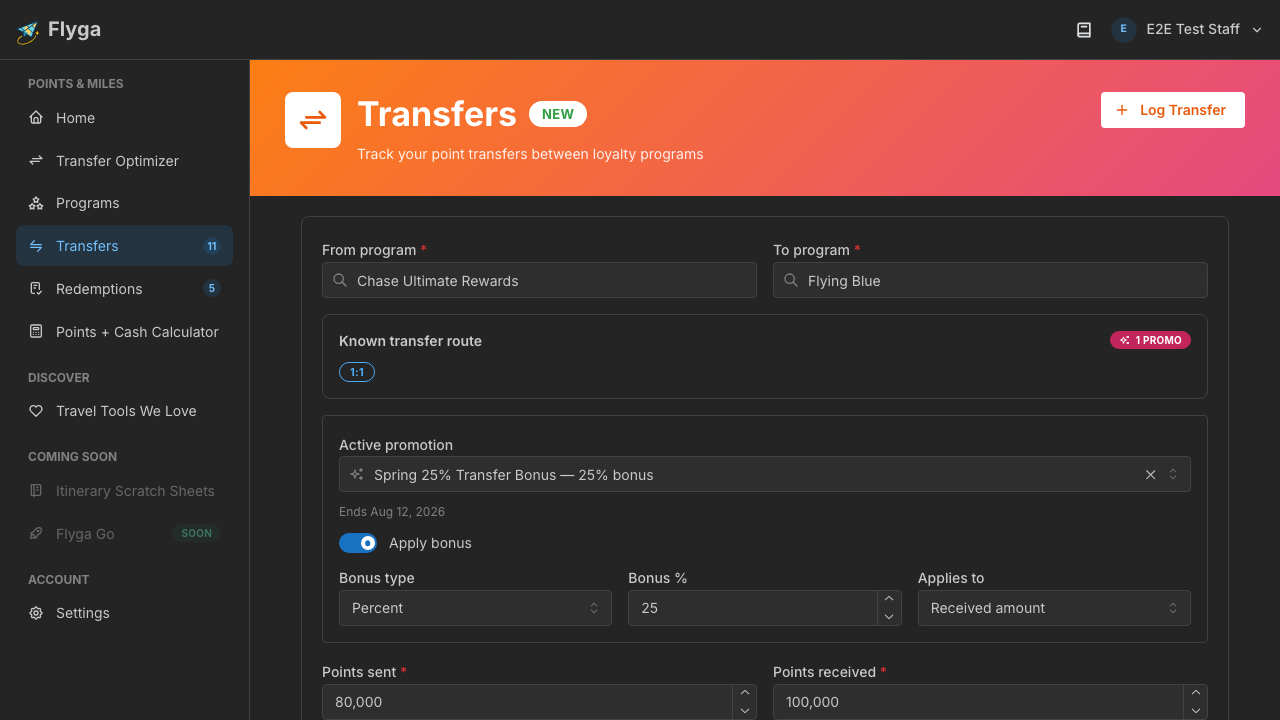
Section titled “Pre-filled Transfer Form”After clicking Make Transfer, you’ll land on the Transfers page with the Log Transfer form already open and filled in:
- From program — The source program from the transfer option
- To program — Your destination program
- Points sent — The number of source points needed
- Points received — Auto-calculated from the transfer ratio
Review and Submit
Section titled “Review and Submit”Check the details, adjust the settlement speed if you know how long the transfer took, add any notes for your reference, and click Log Transfer.
That’s it! For transfer options with multiple hops, see Multi-Hop Chain Wizard.