Logging Your First Redemption
When you book an award flight or hotel stay with points, logging it in Flyga takes about a minute and gives you a clear picture of the value you received. The wizard walks you through it step by step — only the basics are required, and you can add flight details or fare info if you want deeper analysis.
Step 1: Open the Redemptions Page
Section titled “Step 1: Open the Redemptions Page”Navigate to Redemptions from the sidebar. If you haven’t logged any redemptions yet, you’ll see an empty state with a prompt to get started.
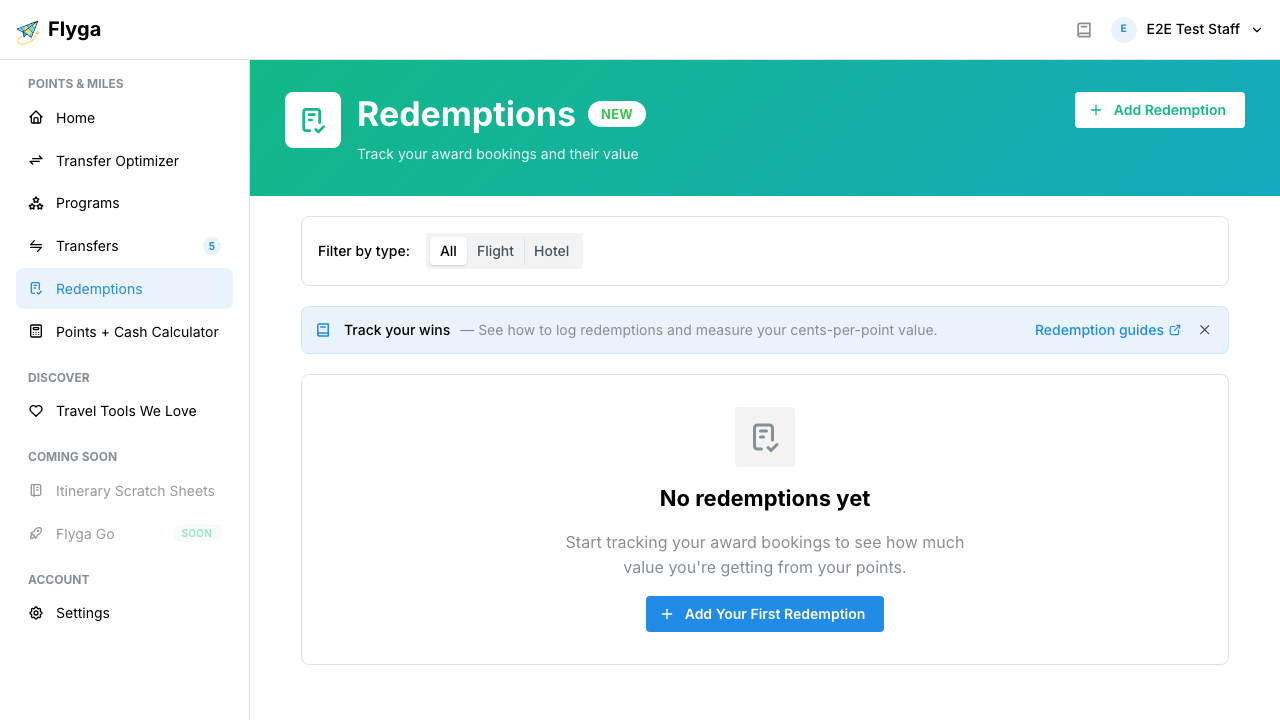
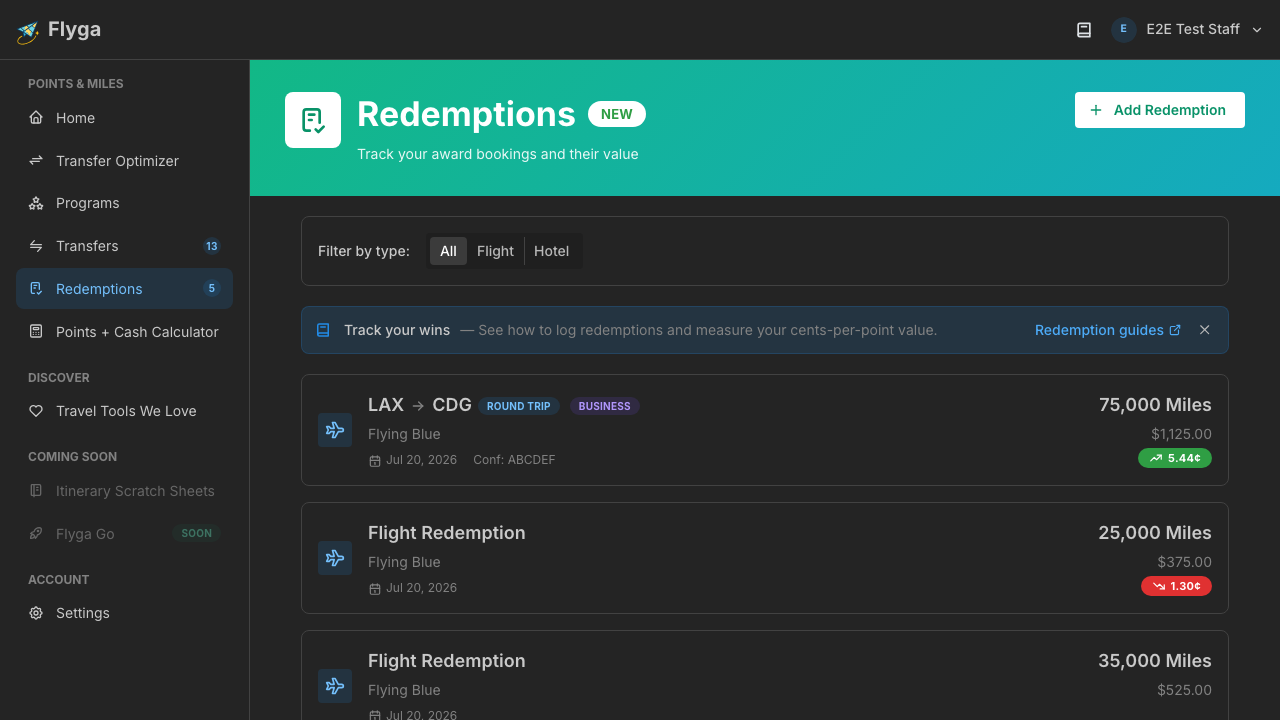
Click Add Redemption (or Add Your First Redemption if it’s your first time) to open the wizard.
Step 2: Fill In the Basics
Section titled “Step 2: Fill In the Basics”The first step captures the essentials:
- Destination Program — The loyalty program you redeemed points from (e.g., Flying Blue, Marriott Bonvoy). Start typing to search.
- Points Redeemed — How many points you used for this booking.
- Redemption Date — When you made the redemption (defaults to today).
- Notes — Optional context like “SFO-NRT business class for honeymoon” to help you remember the details later.
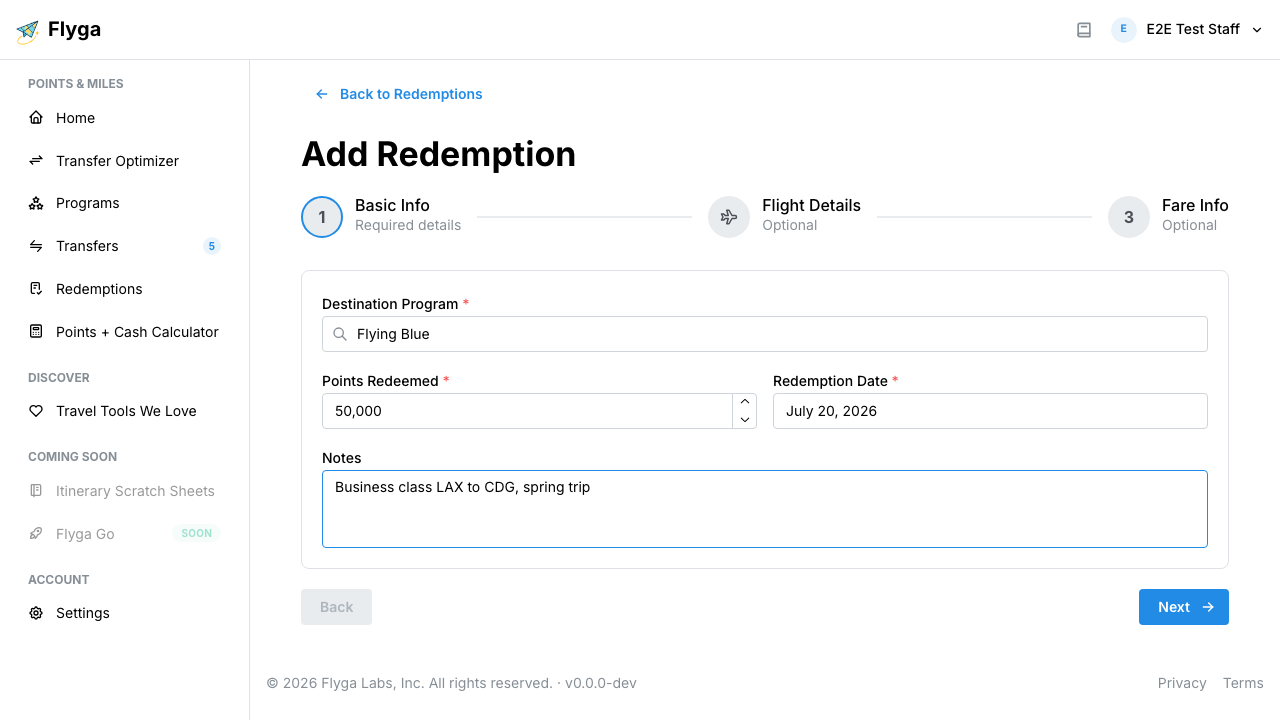
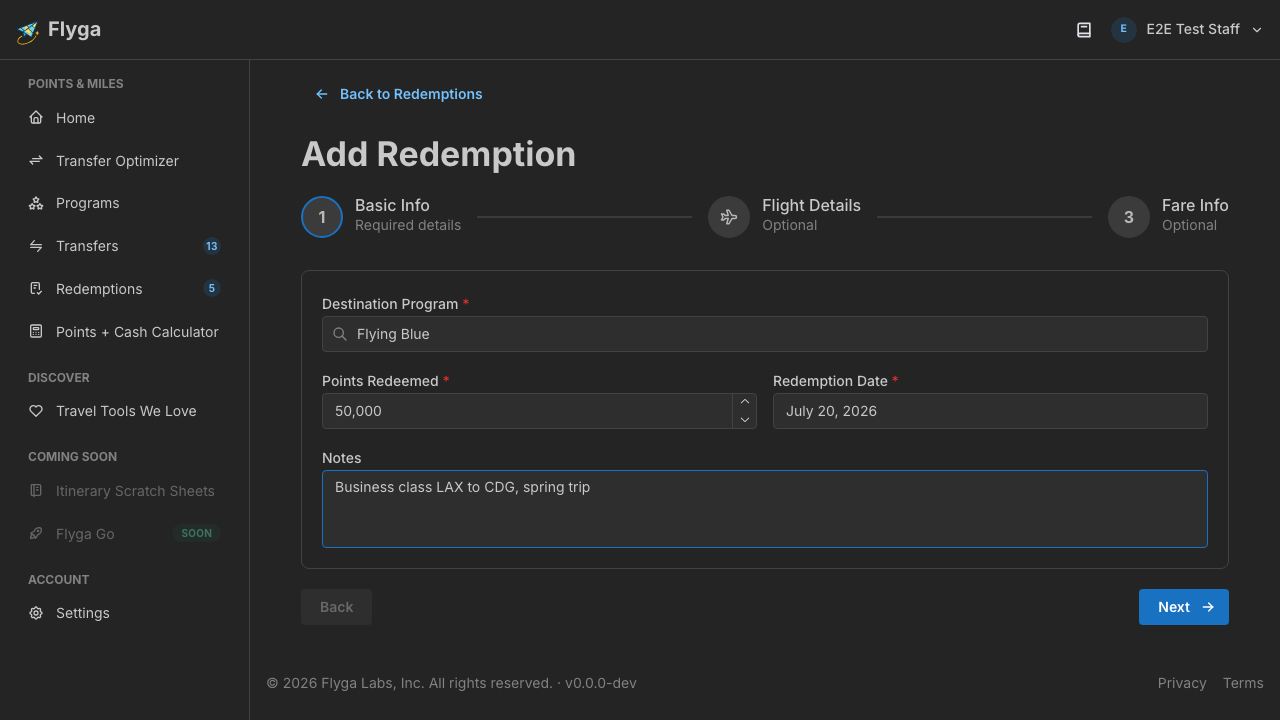
Click Next to continue. If you’re redeeming a flight, the next step lets you add itinerary details. For hotel redemptions, you’ll skip straight to fare info.
Step 3: Add Fare Info (Optional but Recommended)
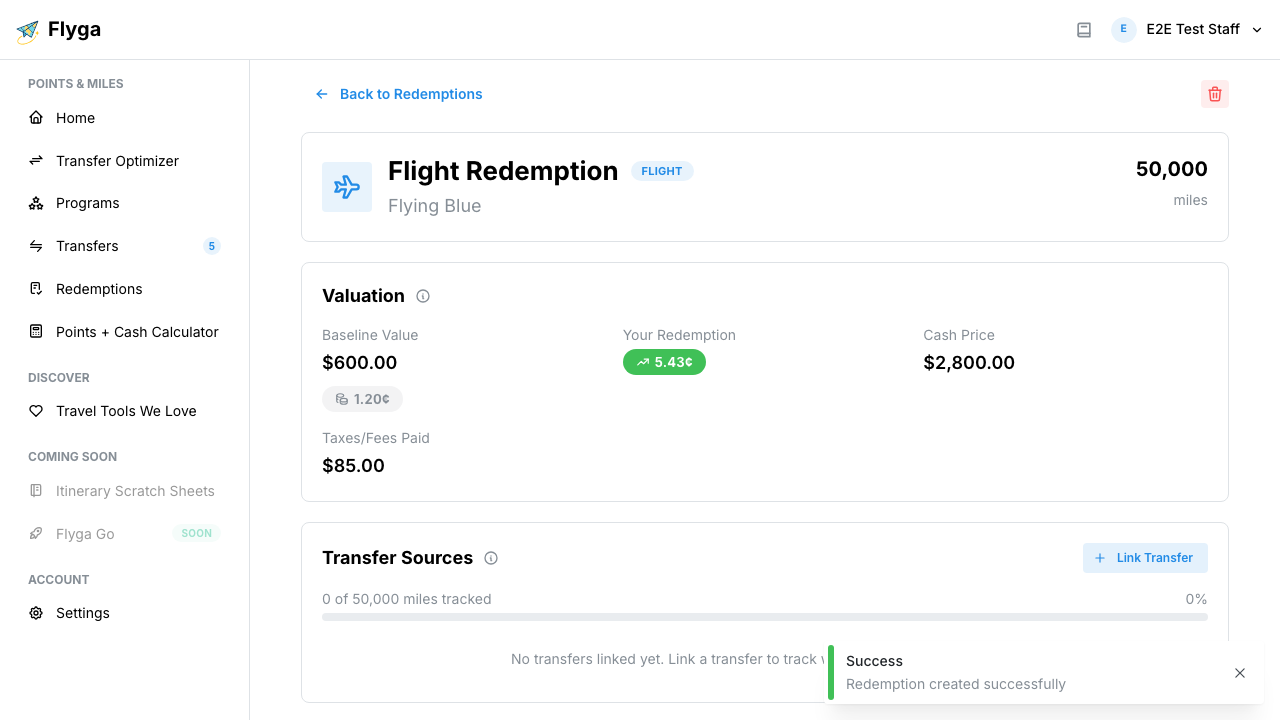
Section titled “Step 3: Add Fare Info (Optional but Recommended)”This is where the magic happens. By entering the cash price of the equivalent booking, Flyga calculates your effective redemption value — the true cents-per-point you got from this redemption.
- Cash Price — What you would have paid if you booked with cash instead of points. Use the all-in price including taxes.
- Taxes & Fees Paid — Any cash you paid alongside your points (common with award flights that still have carrier surcharges).
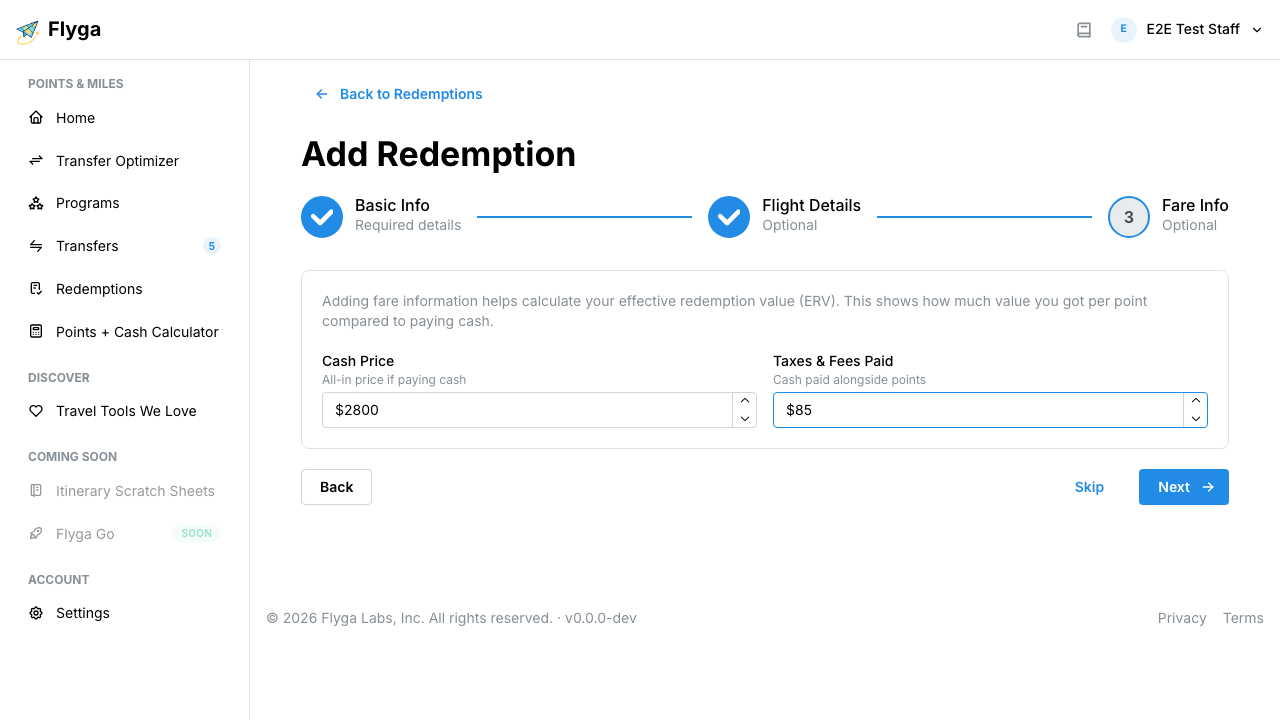
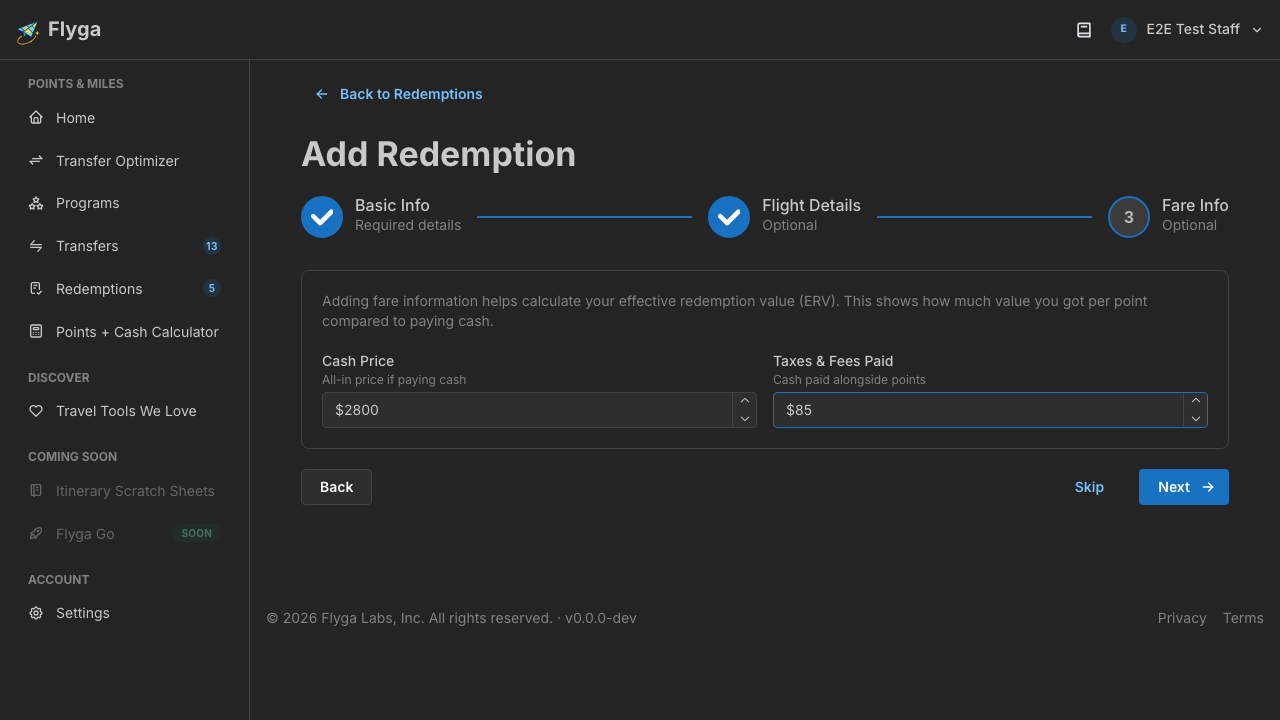
You can also click Skip to move to the review step without entering fare info.
Step 4: Review and Create
Section titled “Step 4: Review and Create”The final step shows a summary of everything you’ve entered. Double-check the program, points, and date, then click Create Redemption.
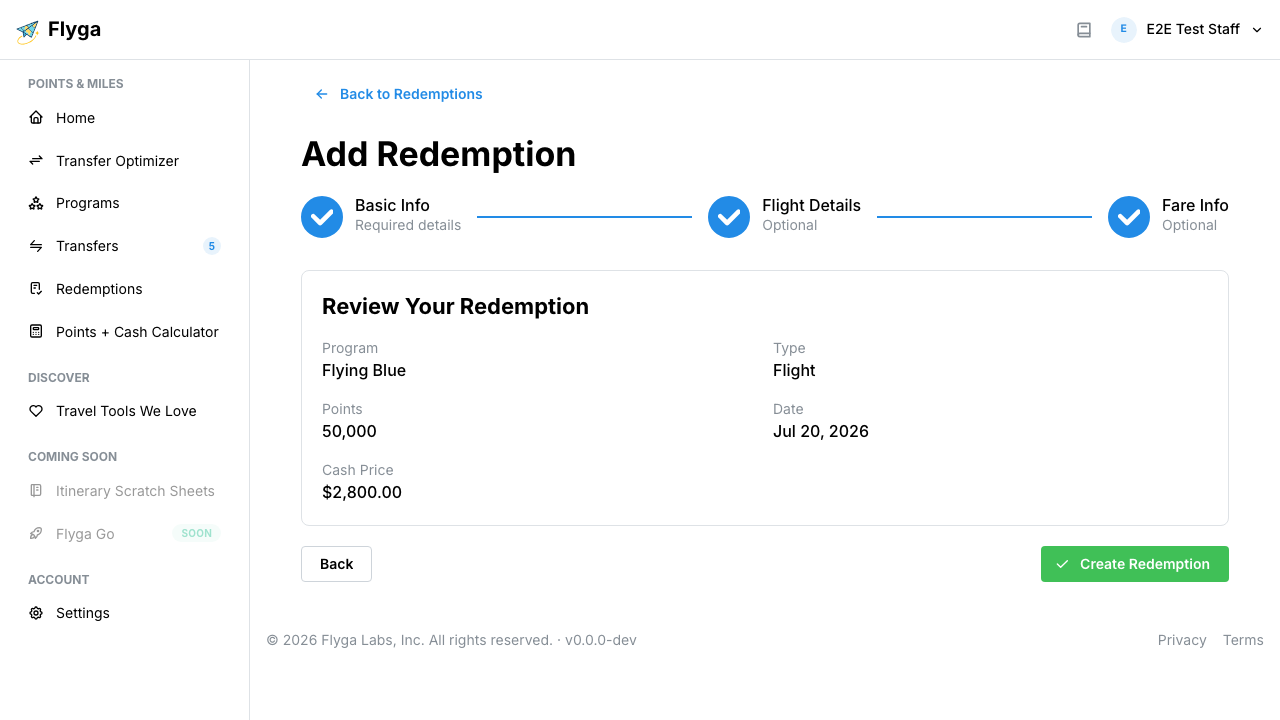
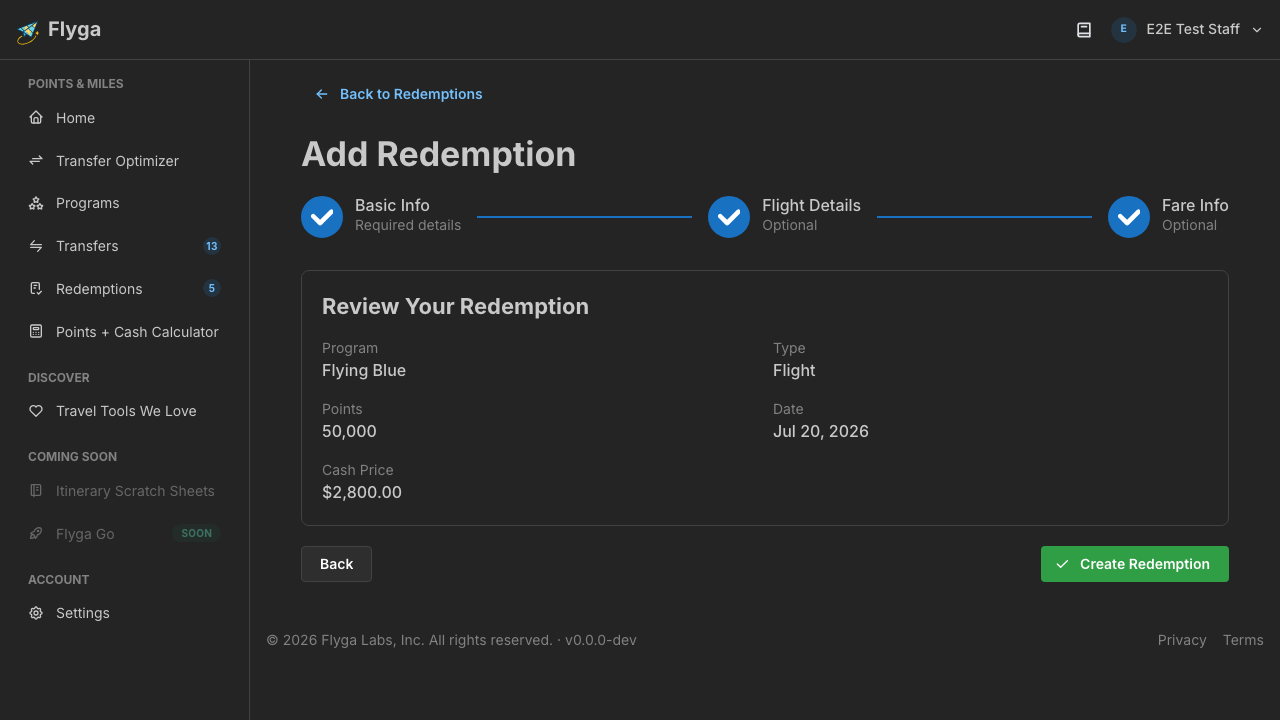
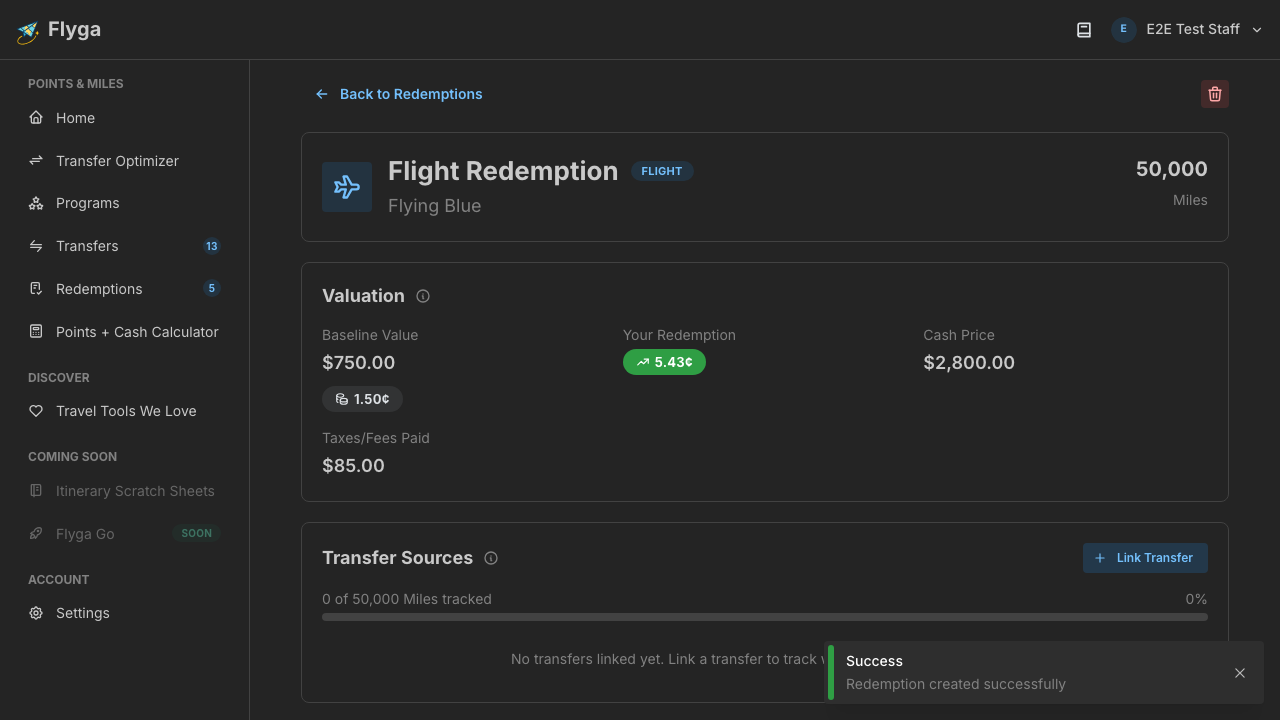
After creating, you’ll land on the detail page for your new redemption, where you can see the valuation breakdown.
You’re all set! Head to Understanding Redemption Value to learn how to read the valuation numbers.