Reading the Results
Once you save a comparison, the detail page breaks down every option so you can see exactly which one wins. This guide walks through how to read each section.
Disclaimer: The screenshots and data shown in this guide are generated from a test environment for instructional purposes only. Program names, point values, and valuations are simulated and may not reflect current real-world rates or availability.
The Best Deal Callout
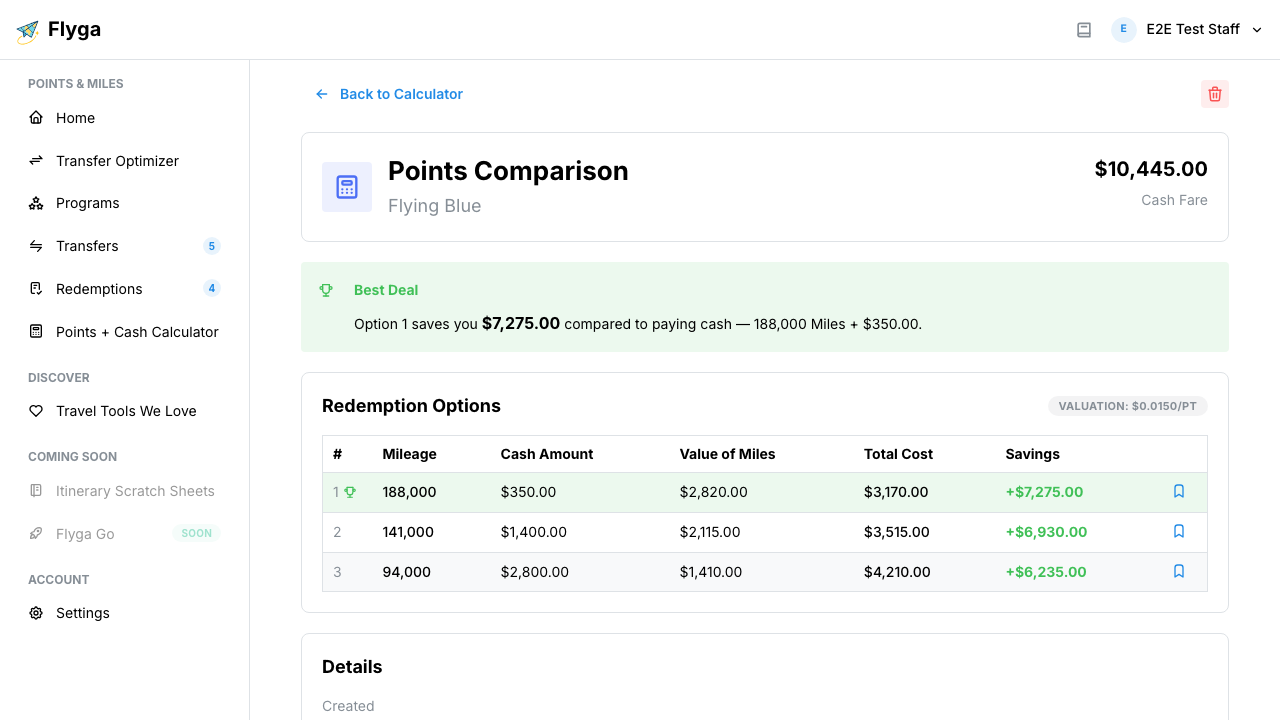
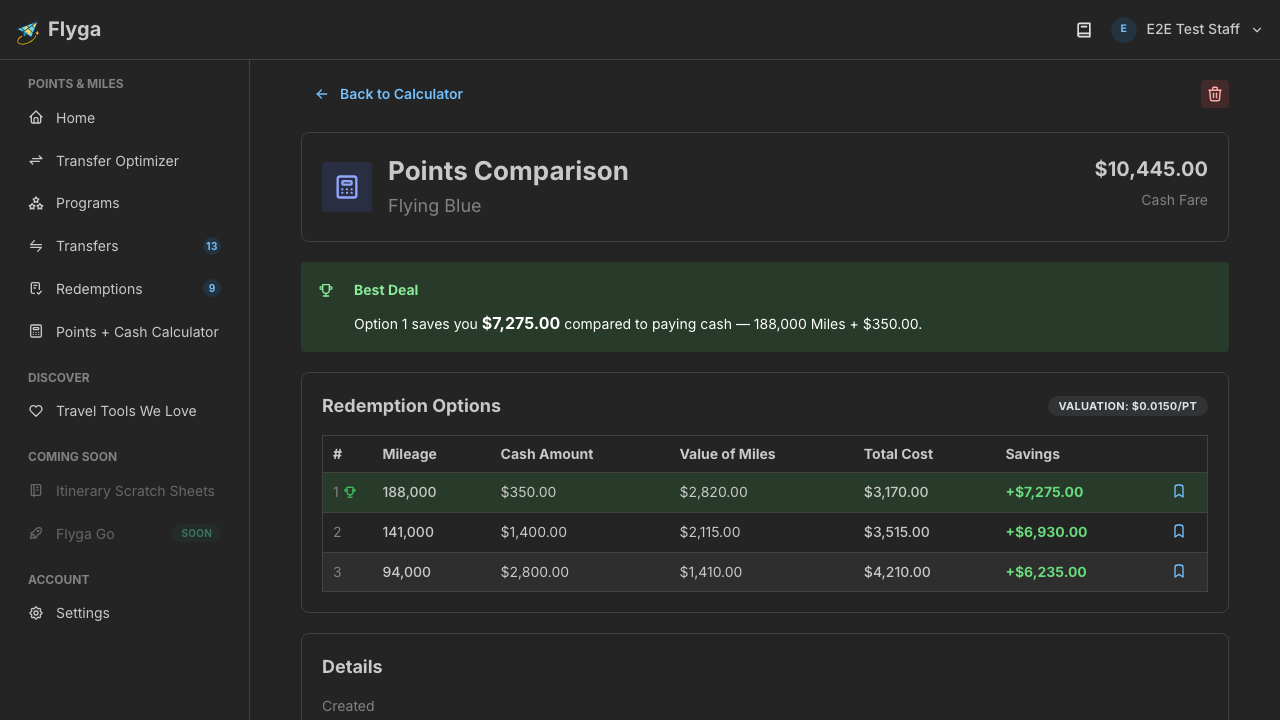
Section titled “The Best Deal Callout”At the top of the detail page, a green callout highlights the winning option. If you entered a cash fare, it shows how much you save compared to paying cash. If you didn’t enter a cash fare, it shows which option has the lowest total cost.
The Options Table
Section titled “The Options Table”The table shows every option you entered, with calculated columns:
- Mileage — Points required for this option.
- Cash Amount — Taxes and fees paid alongside points.
- Value of Miles — Dollar value of the miles used, based on the program’s valuation (mileage x USD per point).
- Total Cost — Value of Miles + Cash Amount. This is what you’re really “spending.”
- Savings — How much less Total Cost is compared to the cash fare. Positive means you save; negative means cash is cheaper.
The winning row is highlighted in green with a trophy icon.
The List Page
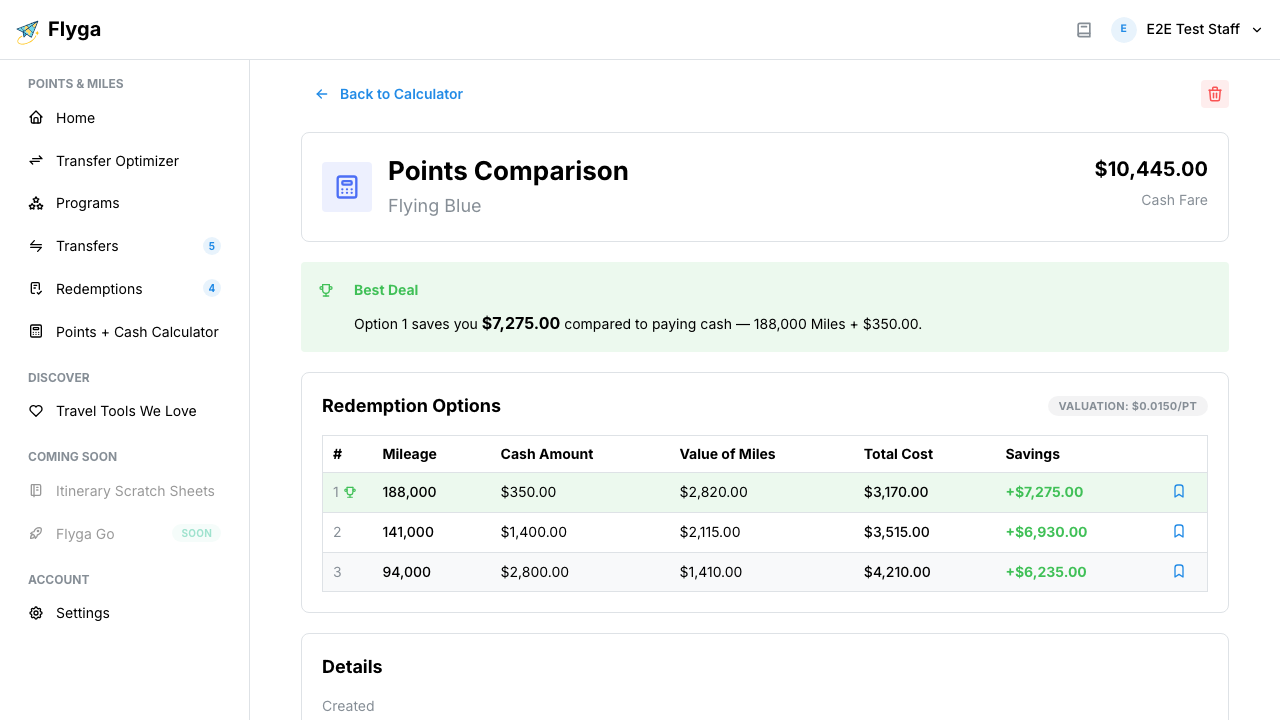
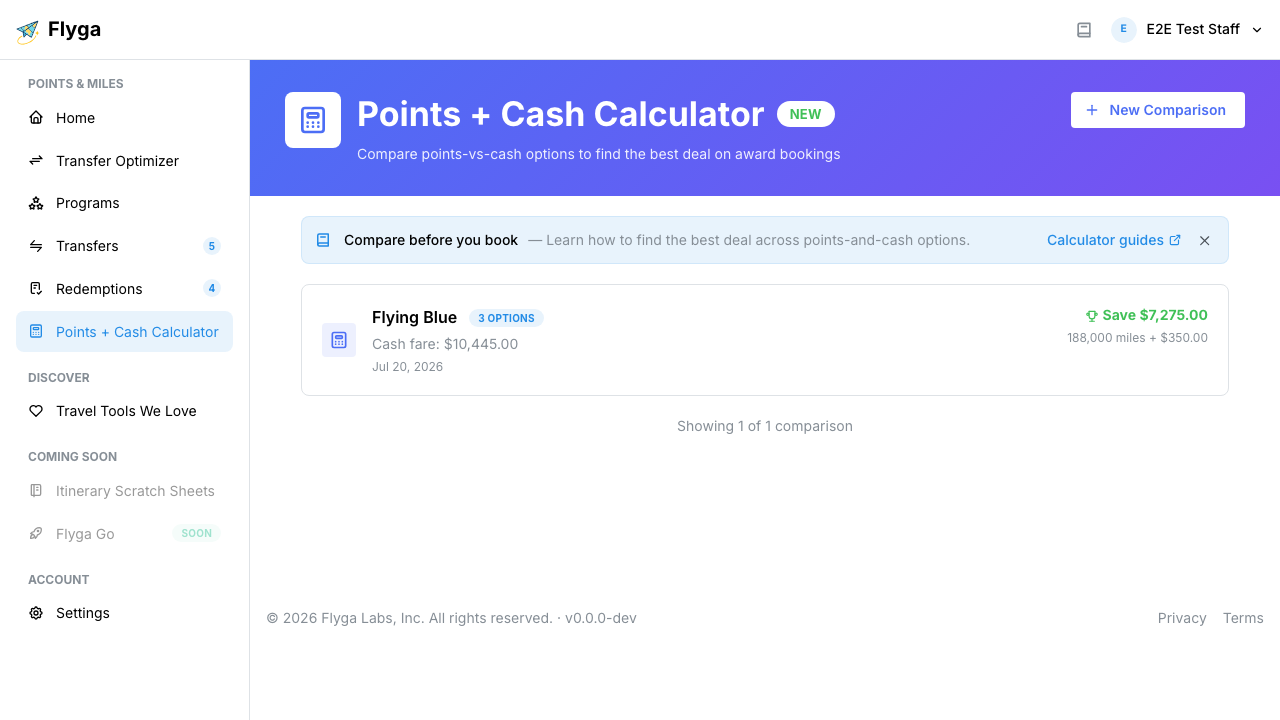
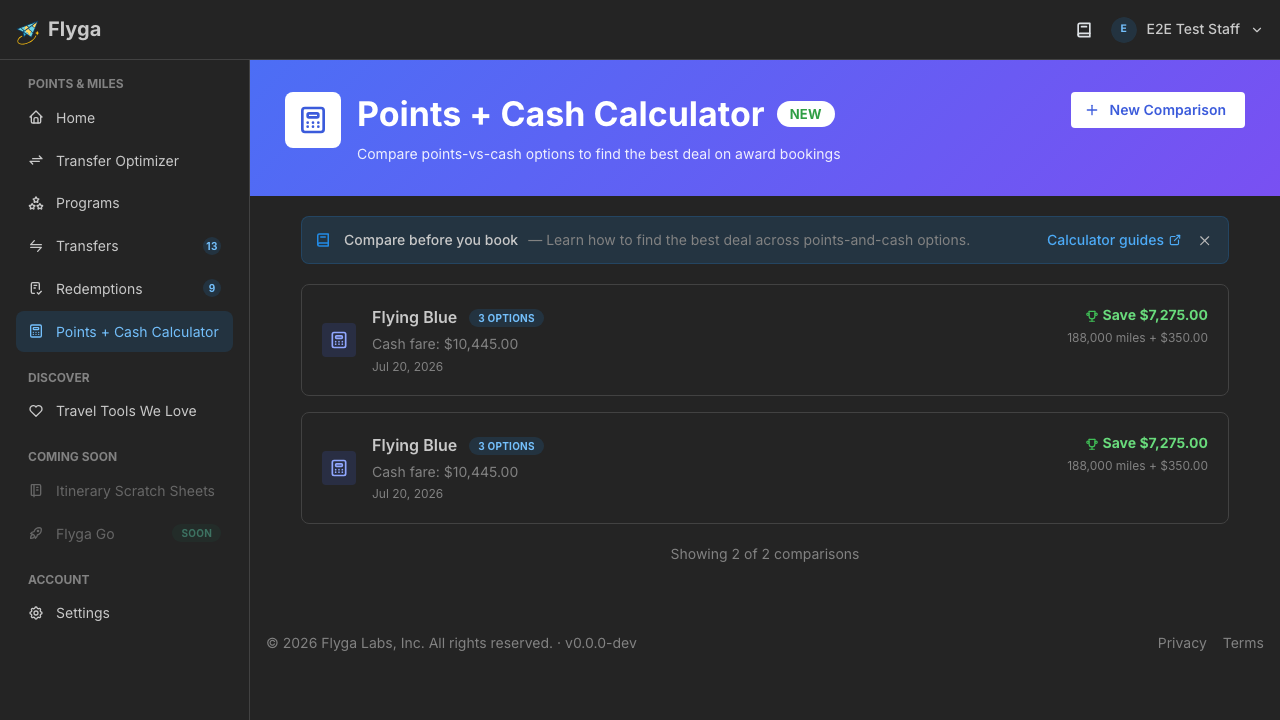
Section titled “The List Page”Back on the main Points + Cash Calculator page, each saved comparison shows a summary card with the program name, route (if you added flight details), and the savings or best value badge.
Now that you know how to read the results, see Converting to a Redemption to learn how to book your winning option and track it.